Launch Offer
50% OFF Annual Plans

Veo 3.1 AI Video Generator

Create videos with Veo 3.1 Fast or Quality. Start from text, a photo or supported image modes, review the credit cost, and download your clip.

FastQualityTextFrames
Cases

Three Veo 3.1 setups

These static illustrations explain possible setups. They are not generated Veo clips and do not demonstrate Fast or Quality output. Use this setting copies that prompt into the console only when the box is empty, and it sets the tier, the input, and the frame. It does not generate, and it does not remove photos already on the console.

Case 01

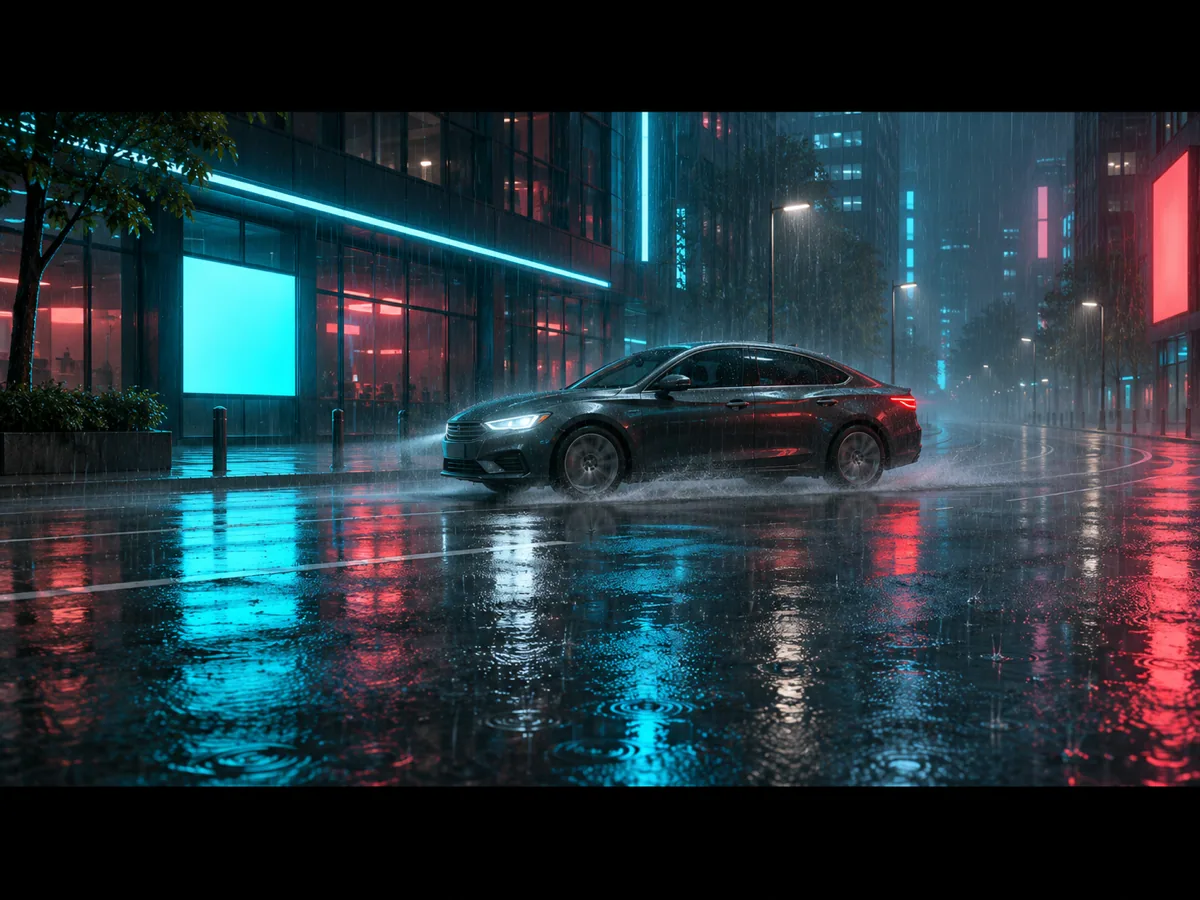
A rainy night street from text

Static illustration of a text-only setup for Fast. The prompt requests a low, steady shot of a car passing through a wet street; this image is not a generated video.

16:98sTextVeo 3.1 Fast
Prompt
A single shot down a rainy night street. Neon reflects on the wet road, one car passes, the camera stays low and steady.
Prompt
Static SetupA low single shot of a rainy night street with neon reflected on the wet road and one passing car
Static illustration — requested street scene
Case 02

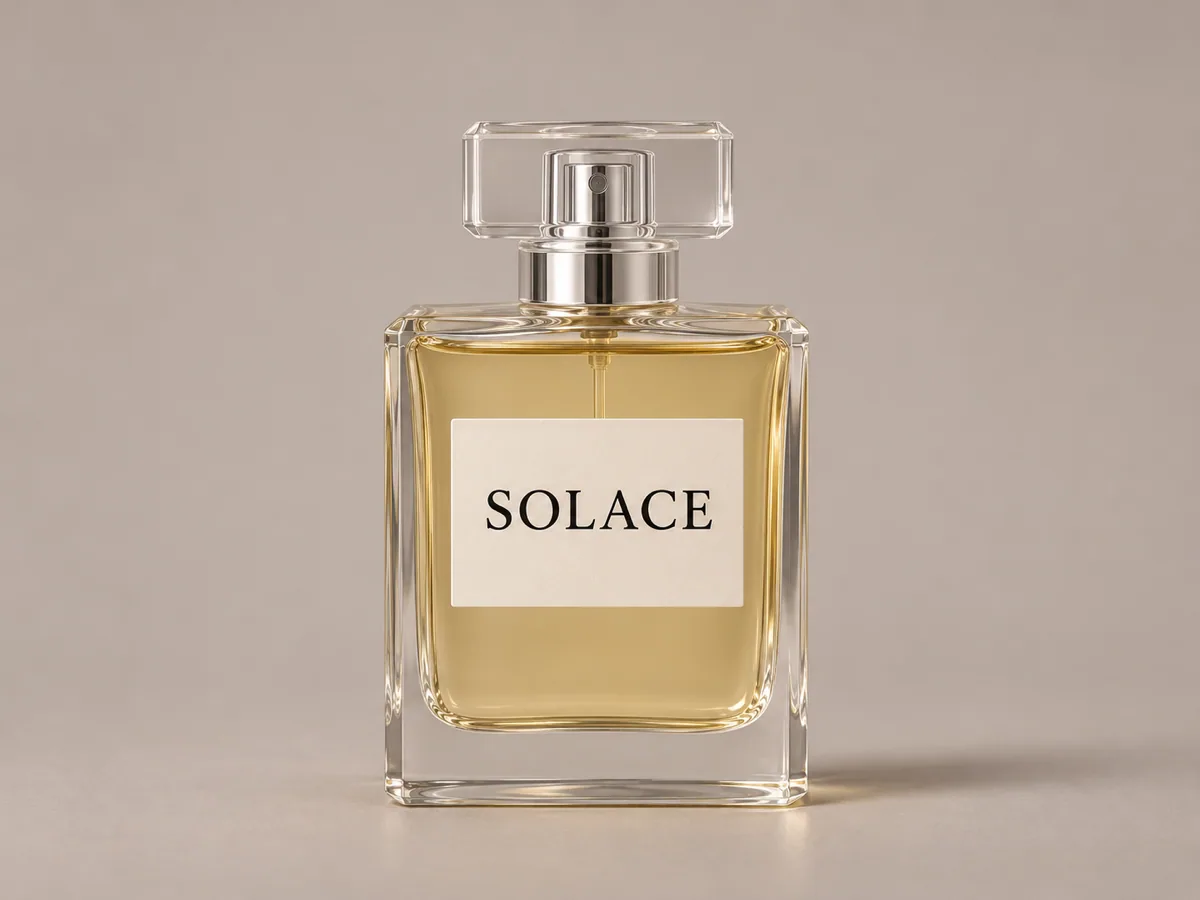
A perfume bottle from one photo

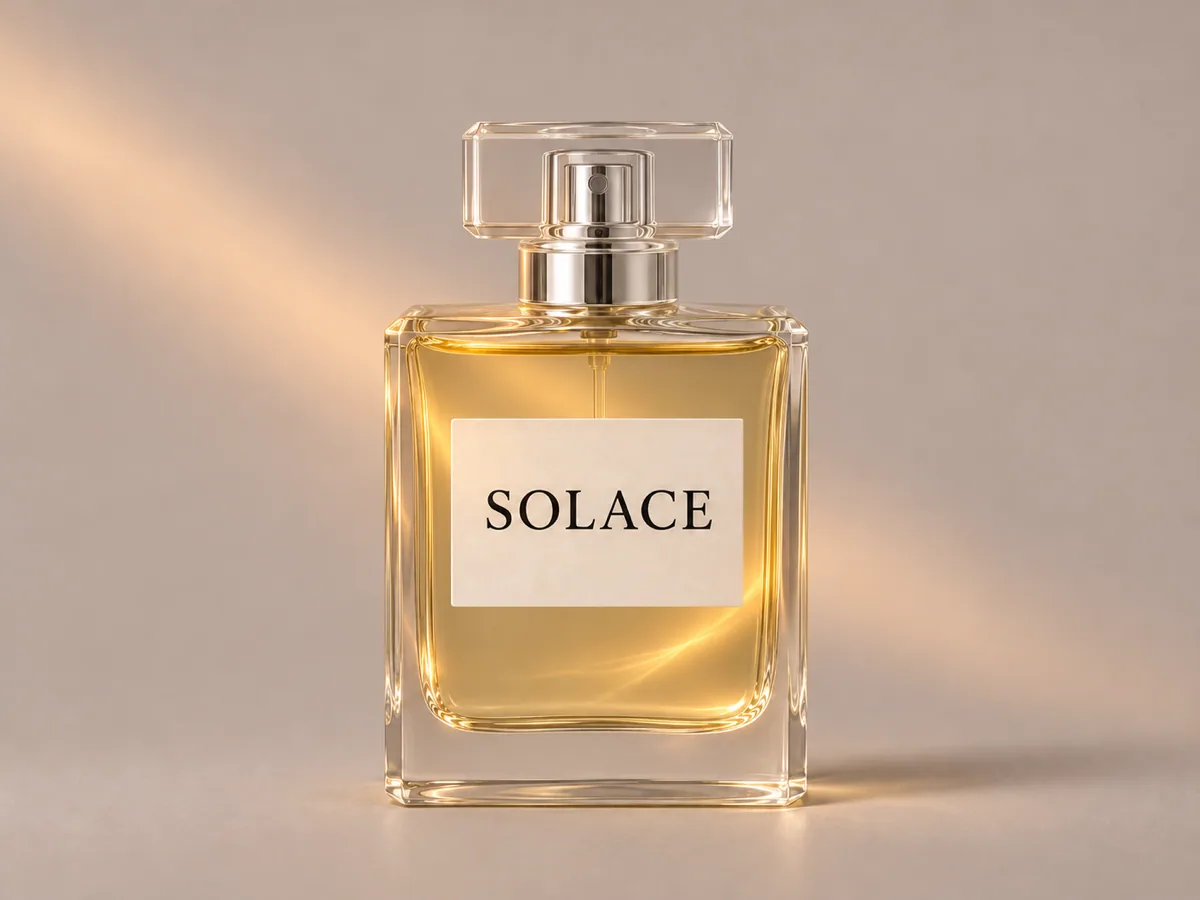
Static illustration of a one-photo setup for Quality. The prompt asks for moving light and a readable SOLACE label; this still does not demonstrate motion or label preservation in a generated clip.

16:98sImageVeo 3.1 Quality
Prompt
Keep the SOLACE label readable. A soft light moves across the glass while the bottle stays centered.
Prompt
Input StillA centered glass perfume bottle with the label SOLACE
The bottle photo
Static SetupThe same SOLACE perfume bottle centered, with a soft light across the glass
Static illustration — requested bottle lighting
Case 03

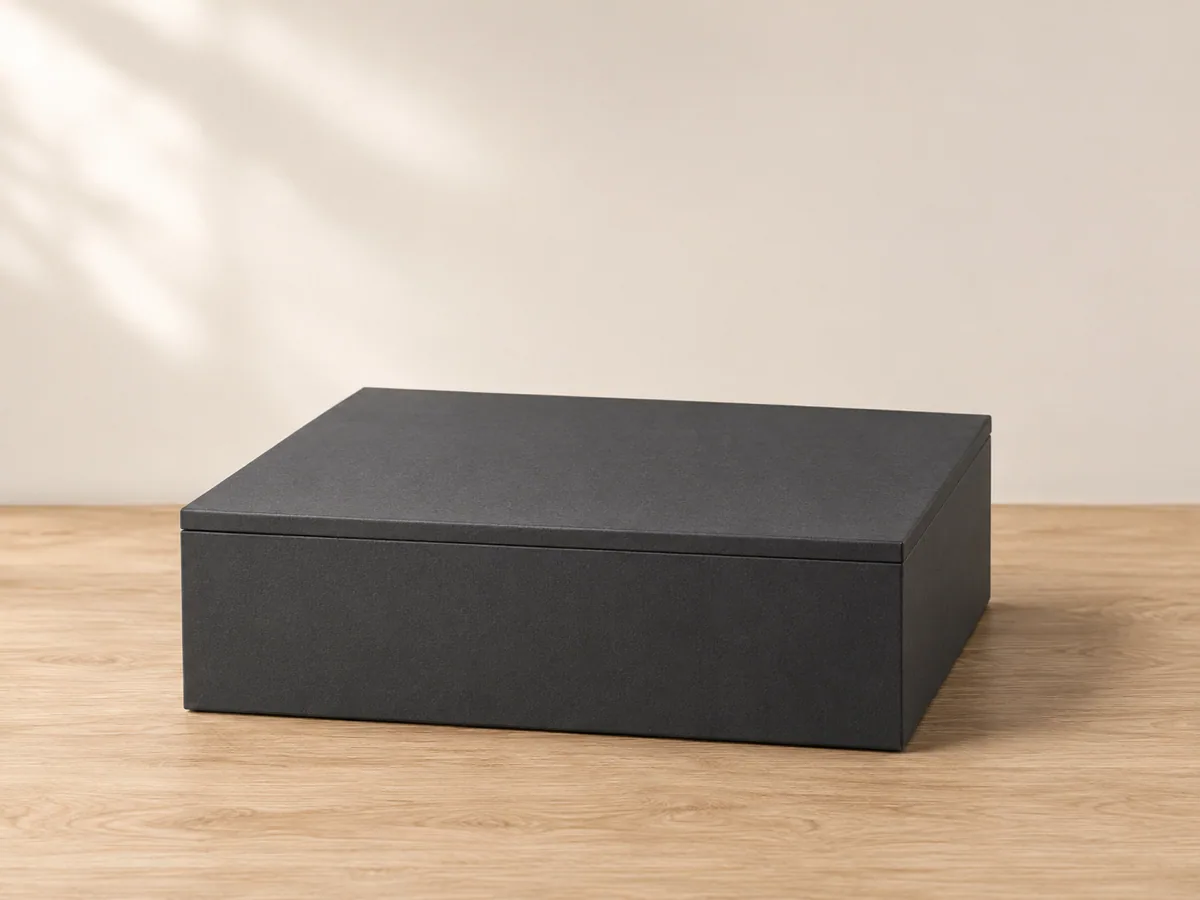
The same box, closed then open

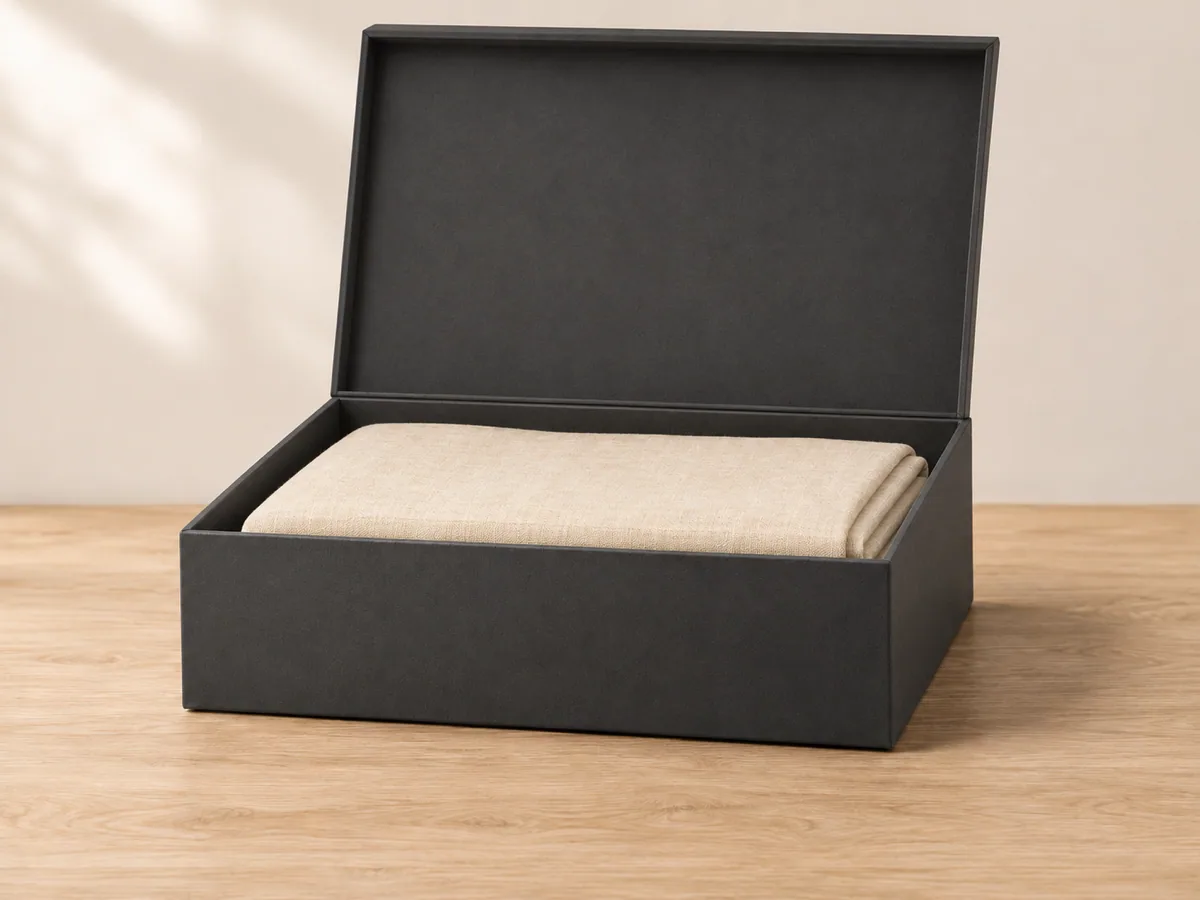
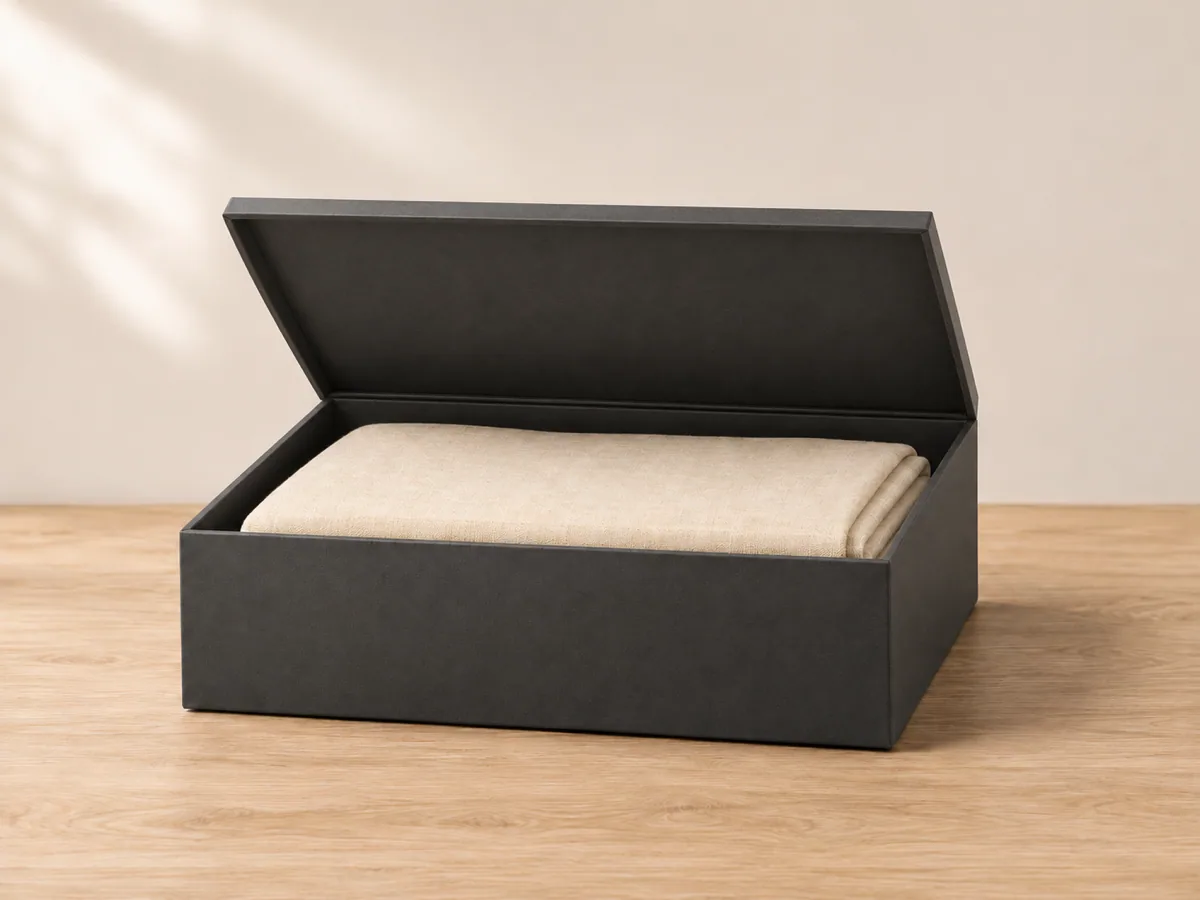
Static illustrations of a first-and-last-frame setup for Fast. The requested action is a lid lift with the linen staying in place; these images do not show a generated transition. For up to three separate reference photos, use References.

16:98sFirst & Last FramesVeo 3.1 Fast
Prompt
The same charcoal box opens. The lid lifts and the folded linen inside stays in place.
Prompt
Frame 01A closed charcoal gift box on a pale table
Closed box
Frame 02The same charcoal gift box open, with folded linen inside
Open box
Static SetupThe same charcoal box with the lid lifting and folded linen still inside
Static illustration — requested box position
Definition

What can I do with Veo 3.1 here?

Veo 3.1 on this page makes an 8 second clip from a written action, one photo, a first frame and a last frame, or up to three reference photos. Fast and Quality sit on the same console. The Generate button shows the credit cost for the tier you picked before a job starts.

You review the clip on this page and download the MP4. A finished clip also stays in My Creations. Changing the tier, the input, the prompt, or 16:9 and 9:16 does not start a job and leaves the last download in place.

Steps

How do I choose Fast, Quality and the right input mode?

  1. STEP 01

    Choose Text, Image, First & Last Frames, or References.

  2. STEP 02

    Choose Veo 3.1 Fast or Quality. References stays on Fast, and the photos you already added stay on the console.

  3. STEP 03

    Write the action. Add only the photos that mode asks for: none for Text, one for Image, one or two for frames, one to three for References.

  4. STEP 04

    Check 16:9 or 9:16. The length is 8 seconds. Read the credit cost on Generate, then generate, review, and download.

How to check two frames of the same box

Use a closed box and the same box open, on the same table and in the same light. The clip should keep that box and show the lid moving. It will not match the last photo pixel for pixel.

If the box changes shape or the table jumps, move the two photos closer together, or use one photo and describe the lid lift. A new Generate is a new charge. Editing the prompt or the frames is free until you click Generate.

Compare

Veo 3.1 here, or a narrower tool?

This page is the Veo 3.1 console: both tiers, and every input that tier can take. The other tools on Happy Horse 2 keep a smaller job.

This page

Fast and Quality, four inputs

Write, upload one photo, set a first and last frame, or add references on Fast. The credit cost sits on Generate. The MP4 downloads here.

Words only

Start from a sentence

The text-to-video page is for a prompt with no photo. It does not take frames or references.

Open text to video
References

Up to three photos

The reference page stays on Fast and is built for subject, object, and scene photos together.

Open reference to video
One product

A product still

The product page animates one product photo. It does not switch between Fast and Quality.

Open product video
Review

How do I check the clip?

Play the whole 8 seconds. The subject should still be the one you named or uploaded, and the action should follow the prompt. Lettering you supplied, such as a product label, should stay readable.

A frames job should keep the same object from the first photo toward the last. Treat a mismatched box, a new room, or a melted label as a reason to change the photos or the prompt and generate again.

  • The subject matches the prompt or the uploaded photo.
  • The action is the one you wrote, seen from start to finish.
  • Supplied lettering is still readable.
  • The frame is the 16:9 or 9:16 you selected.
FAQ

Veo 3.1 questions

Inputs, Fast and Quality, a frames job, and where the download goes.

Need more help?
Credits are shown on Generate before a job starts. View pricing

Text takes no photo. Image takes one JPG, PNG, or WebP. First and last frames take one or two. References takes one to three, and only on Veo 3.1 Fast. A damaged file or a file over the upload limit is stopped before a charge.

Fast is the tier for a text shot, a frames pair, or up to three references. Quality is the higher tier for text, one photo, or a frames pair. Switching to Quality does not remove photos. If References is selected, Quality waits until you choose another input.

No. A frames clip should keep the same subject and a sensible motion between the two photos. Check the opening, the middle, and the end. If the object changes, use closer photos or describe the motion from one photo.

No. Changing Fast or Quality, the input, the prompt, or the frame keeps the last download. Generate stays disabled while a request is in progress. Clicking Generate again is a new charge. A failed job follows the credit refund already used on Happy Horse 2.

Download the MP4 from the result on this page while it is open. A refresh does not rebuild the console draft. Open My Creations to find the finished task.

Get started

Start a Veo 3.1 clip

Write the action, pick Fast or Quality, and download the MP4 from this page.