Launch Offer
50% OFF Annual Plans

Reference to Video AI

Turn up to three reference images into one AI video. Guide the subject, scene and motion, review your clip, and download it with Happy Horse 2.

1–3 images8 seconds16:9 or 9:16
Cases

Three ways to brief one clip

Each setup is a separate shot: its own pictures, its own move, and its own frame. Use this setting copies that ratio into the console. It leaves an action you already wrote untouched, and it does not generate.

Case 01

Character, coat, and street in one push-in

Image 1 holds the person, image 2 holds the coat, and image 3 holds the street. The move is a slow push-in. Check that the coat and the signature color stay recognizable from the first frame to the last.

16:98sSlow push-inVeo 3.1 Fast
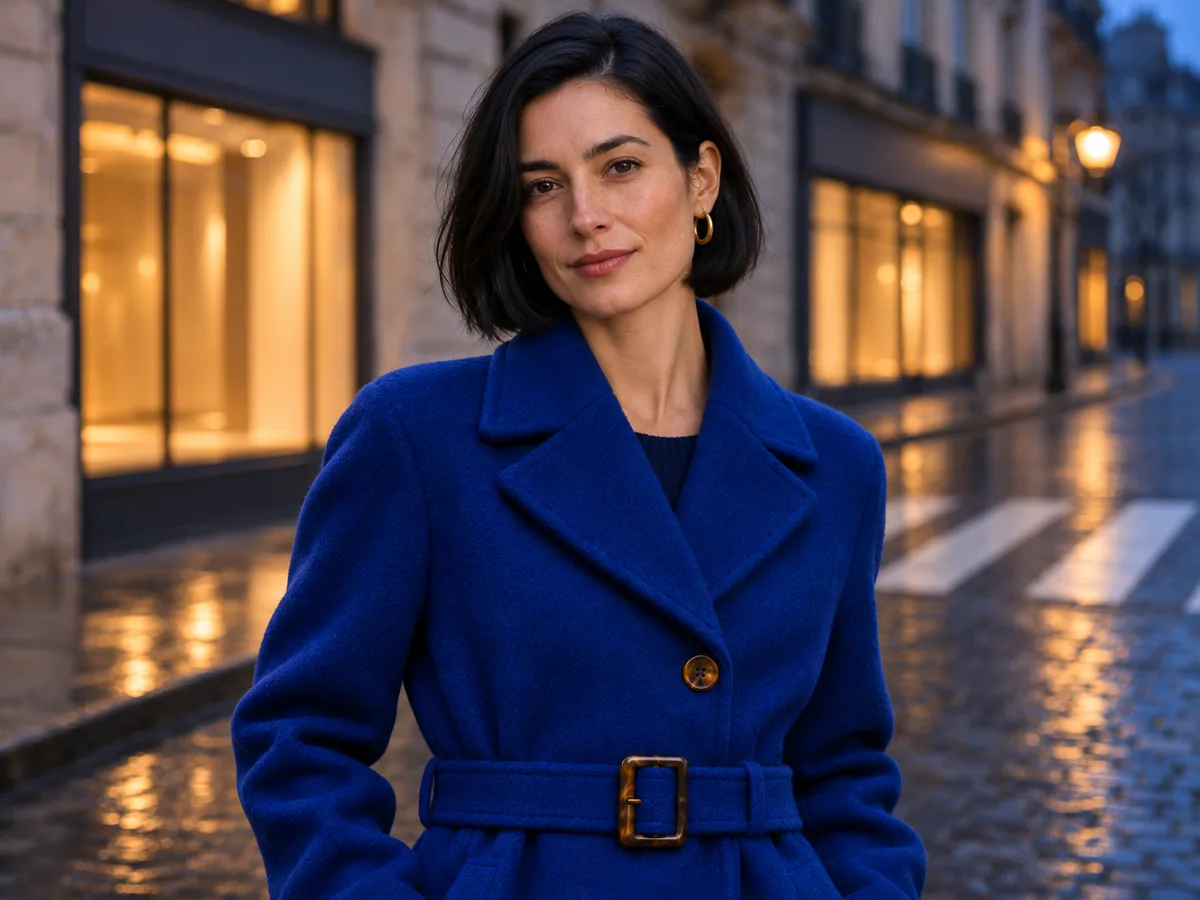
Ref 01Front view of a person in a cobalt coat standing on a city street
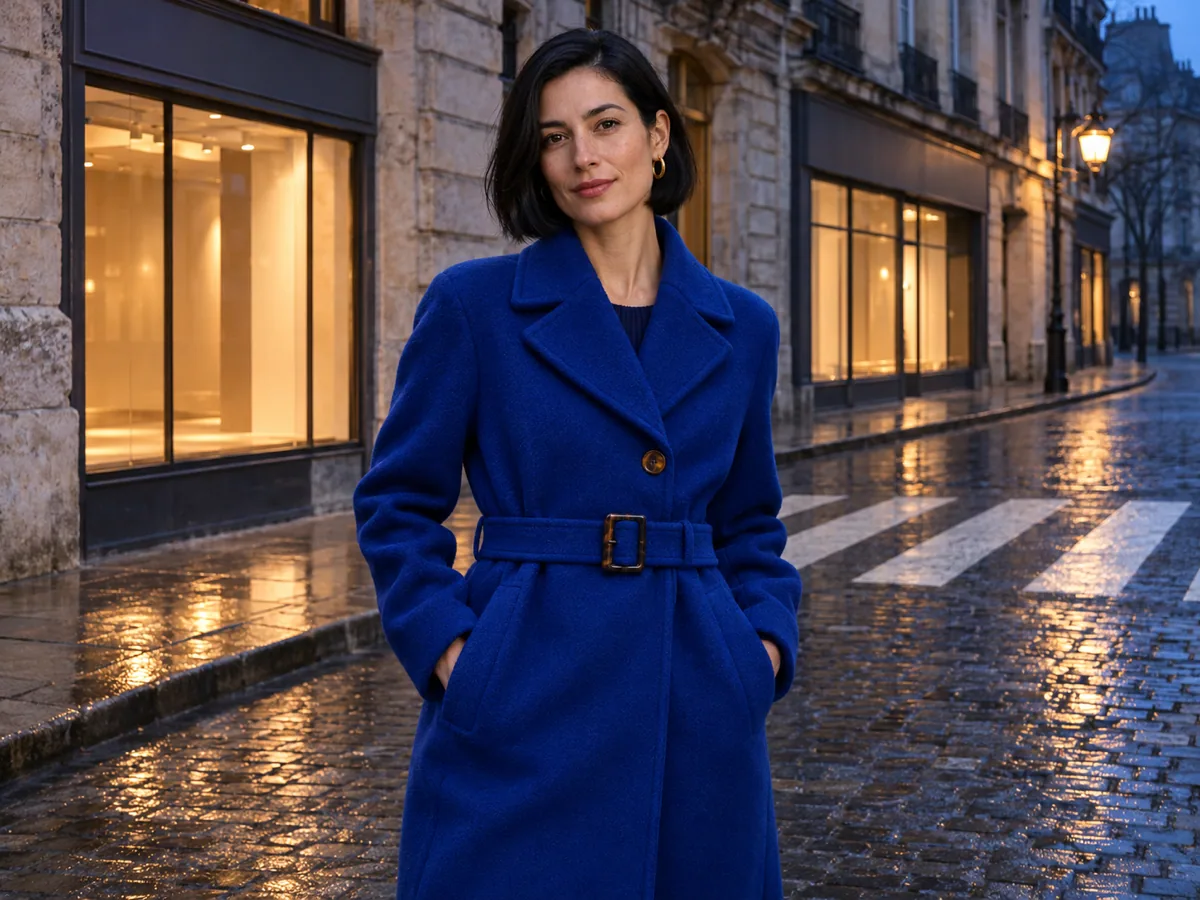
Image 1 · person
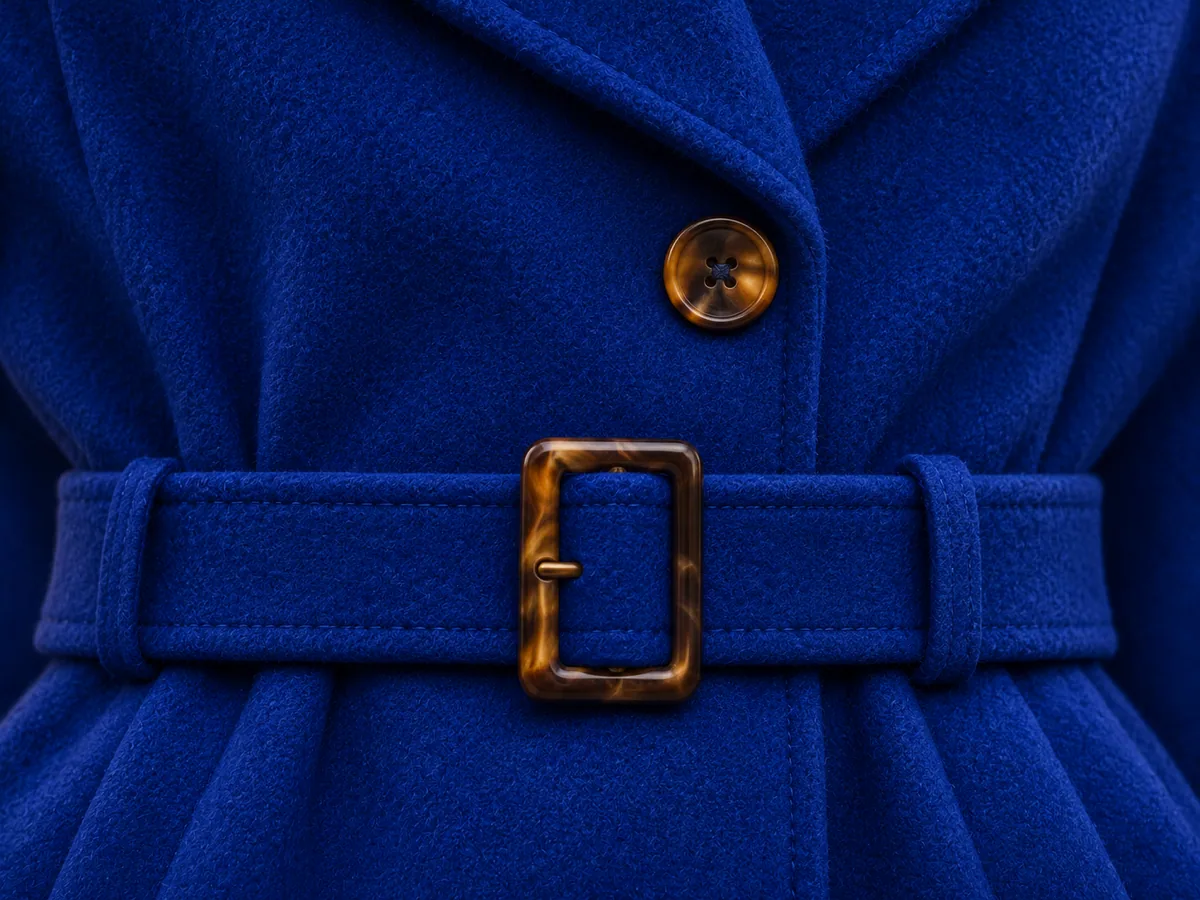
Ref 02Close view of a cobalt wool coat with a horn button and belt
Image 2 · coat
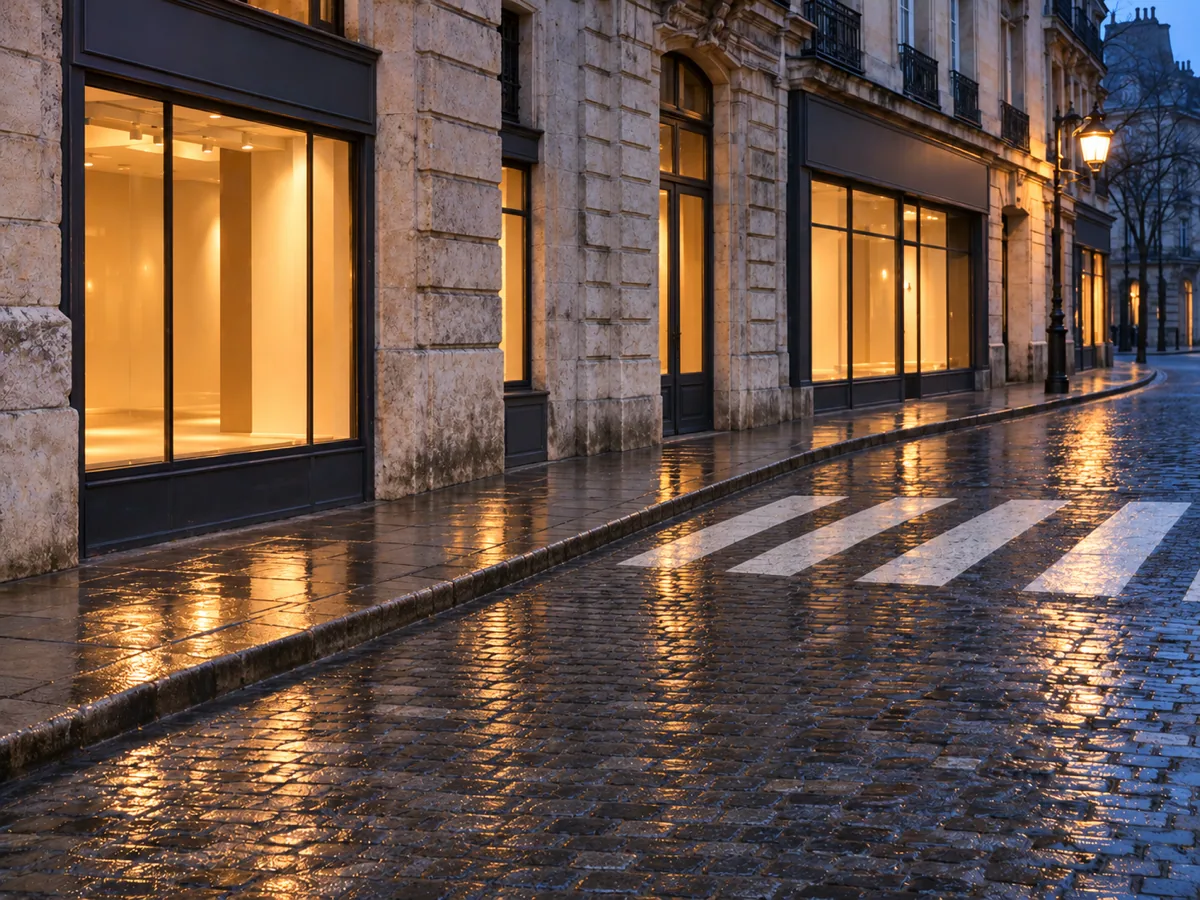
Ref 03Wet evening street with warm shop lights and a crosswalk
Image 3 · street
Composite TargetThe same person in the cobalt coat on the wet street, framed closer
16:9 · 8s · slow push-in
Case 02

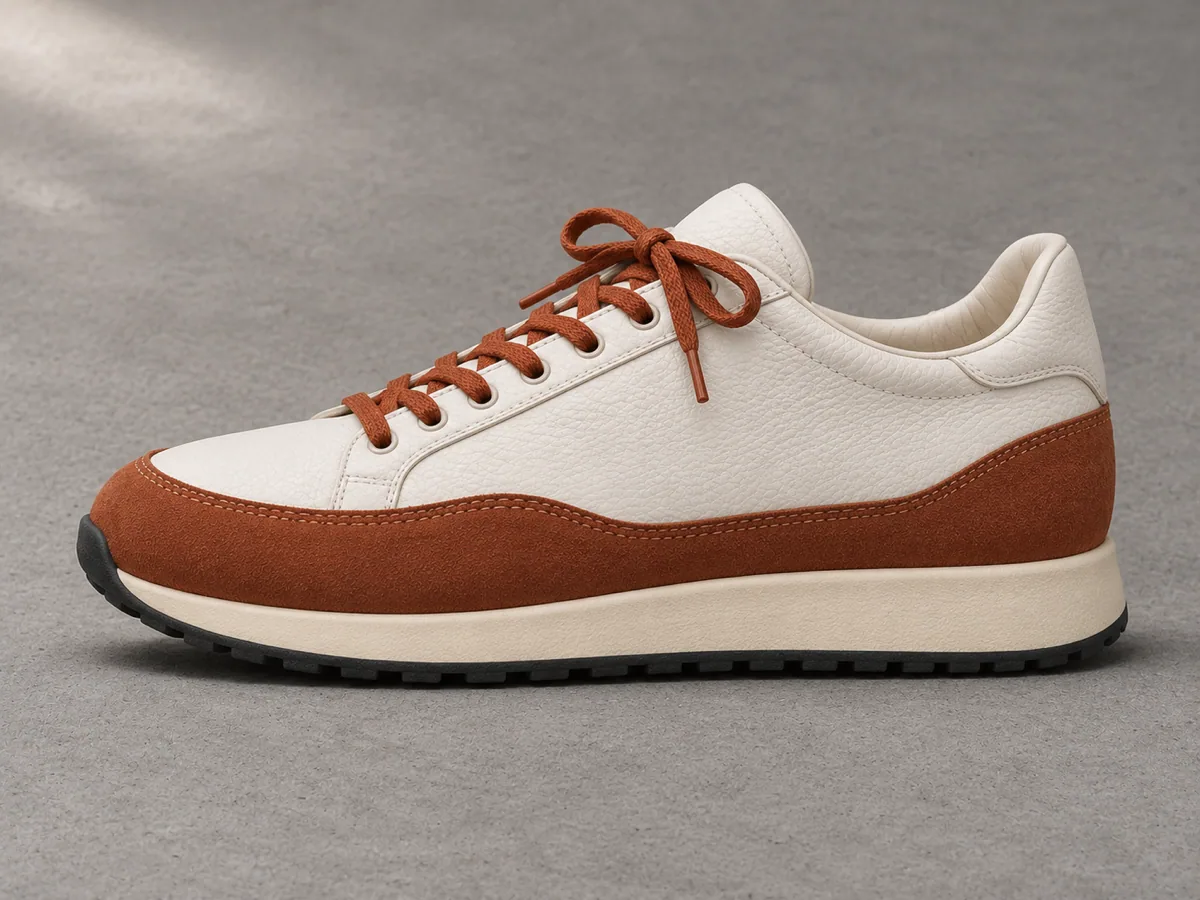
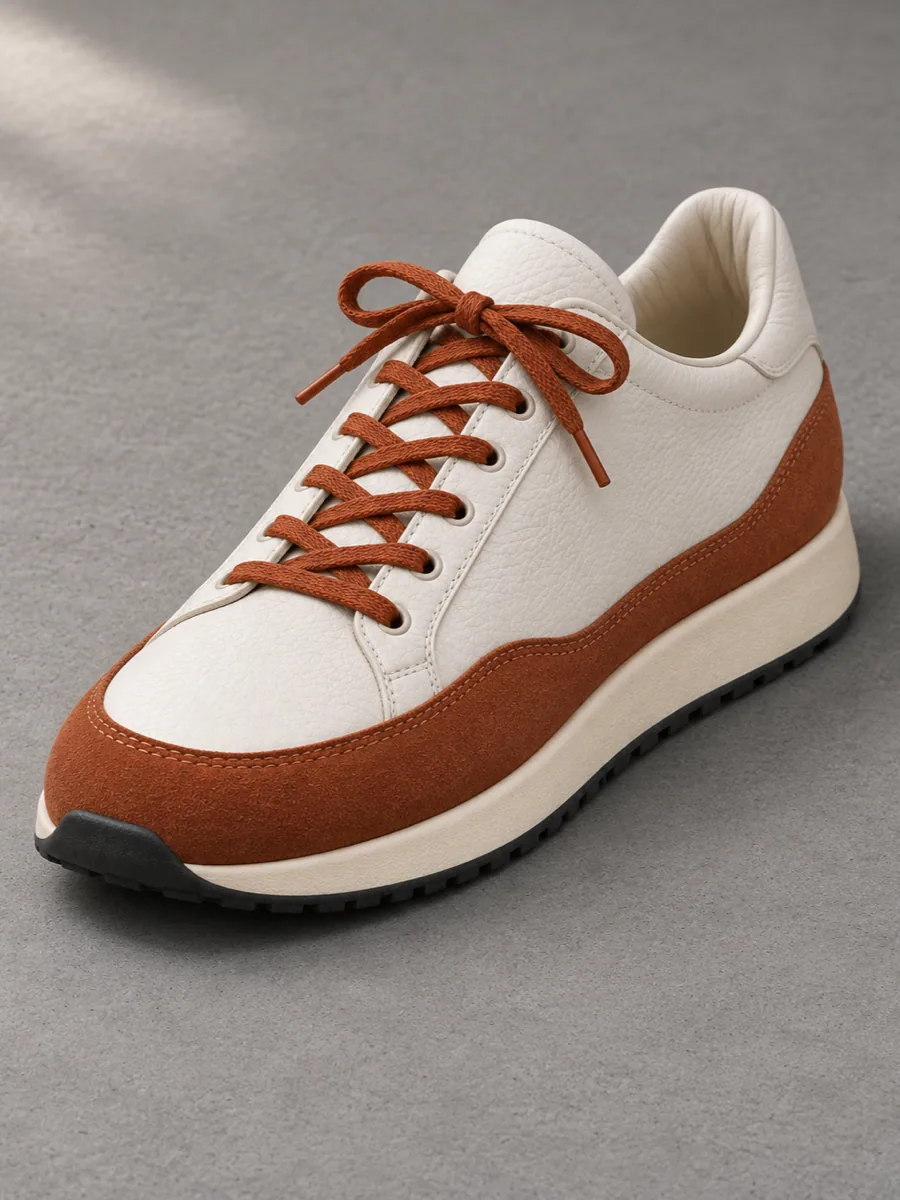
Two views of one shoe, then a slight orbit

The front view and the side view describe one shoe. The move is a small orbit in a vertical frame. Check that the silhouette and the colorway stay the same shoe.

9:168sSlight orbitVeo 3.1 Fast
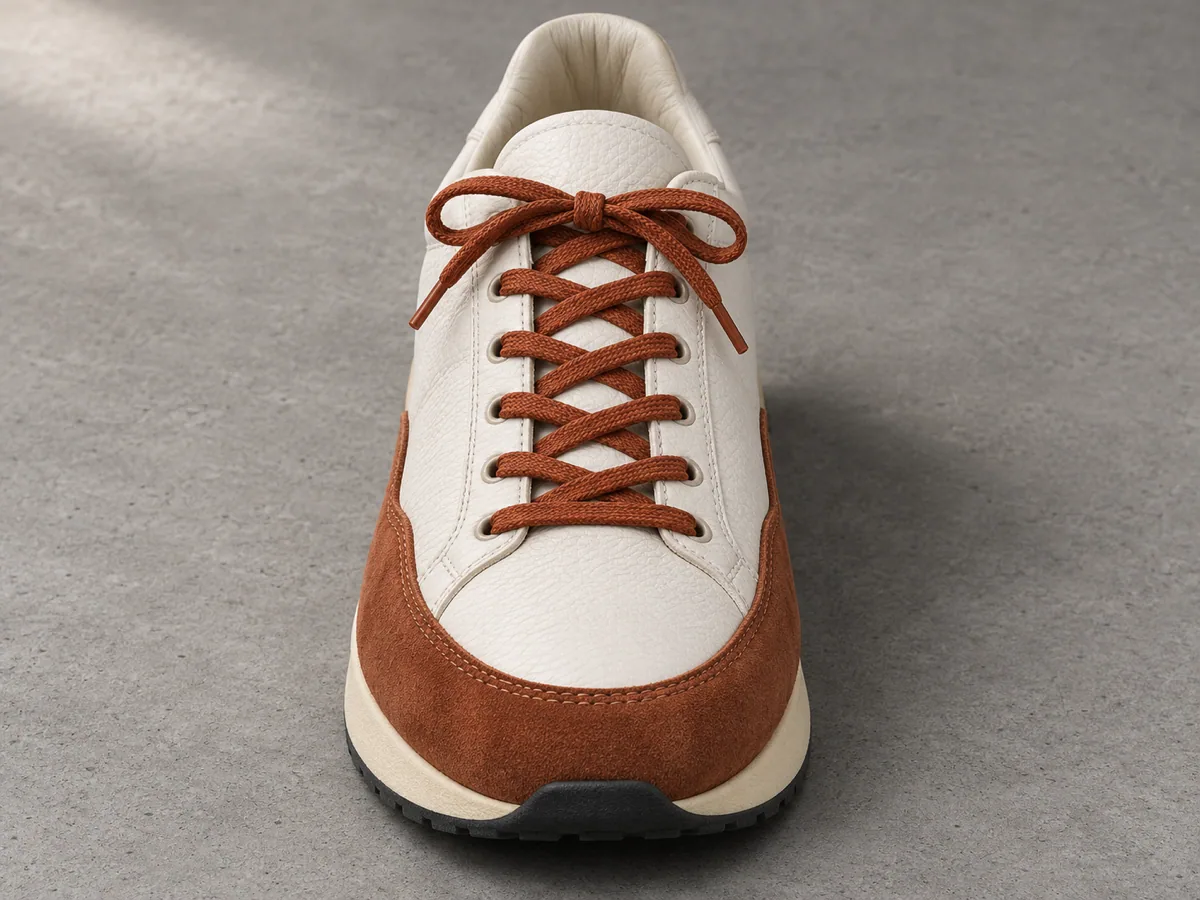
Ref 01Front view of a chalk-white and rust running shoe
Image 1 · front
Ref 02Side view of the same chalk-white and rust running shoe
Image 2 · side
Composite TargetThe chalk-white and rust running shoe turned a few degrees on concrete
9:16 · 8s · slight orbit
Case 03

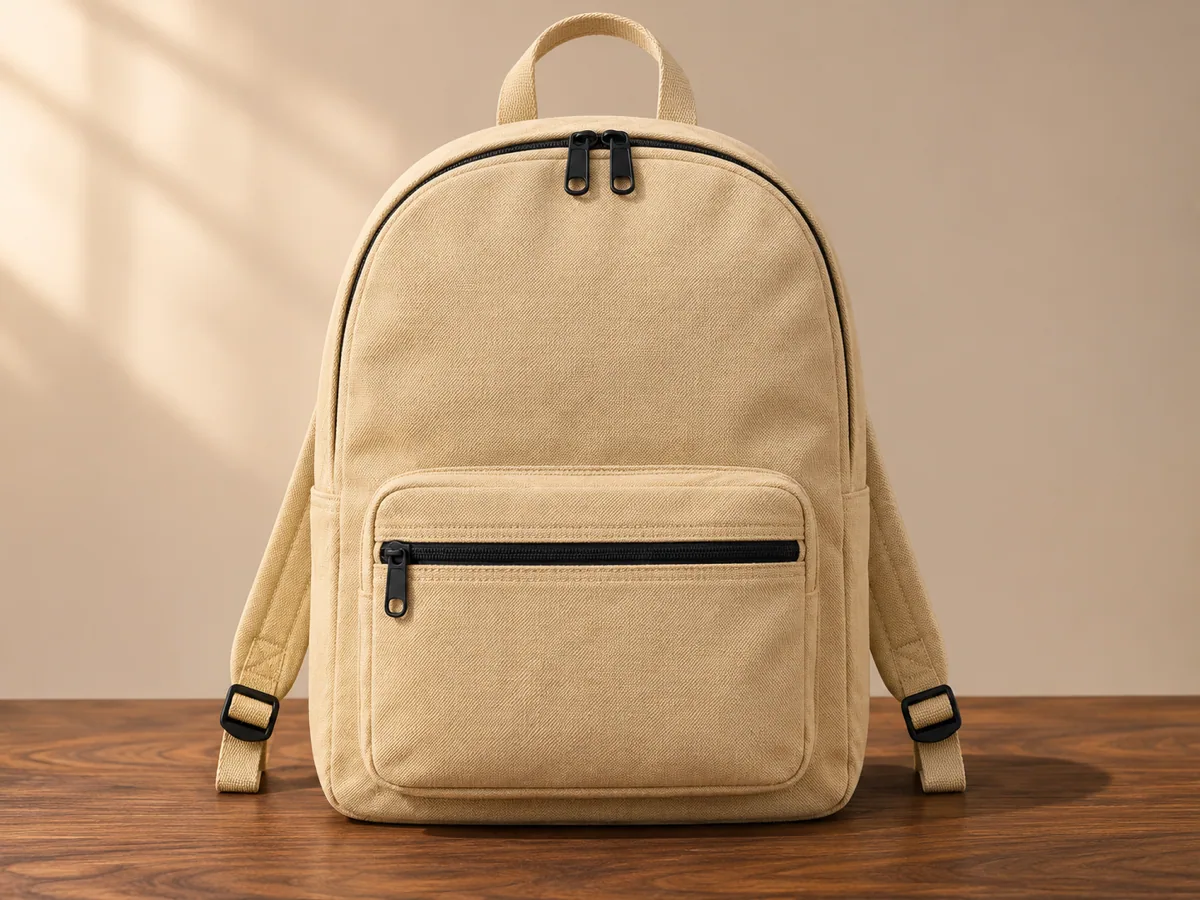
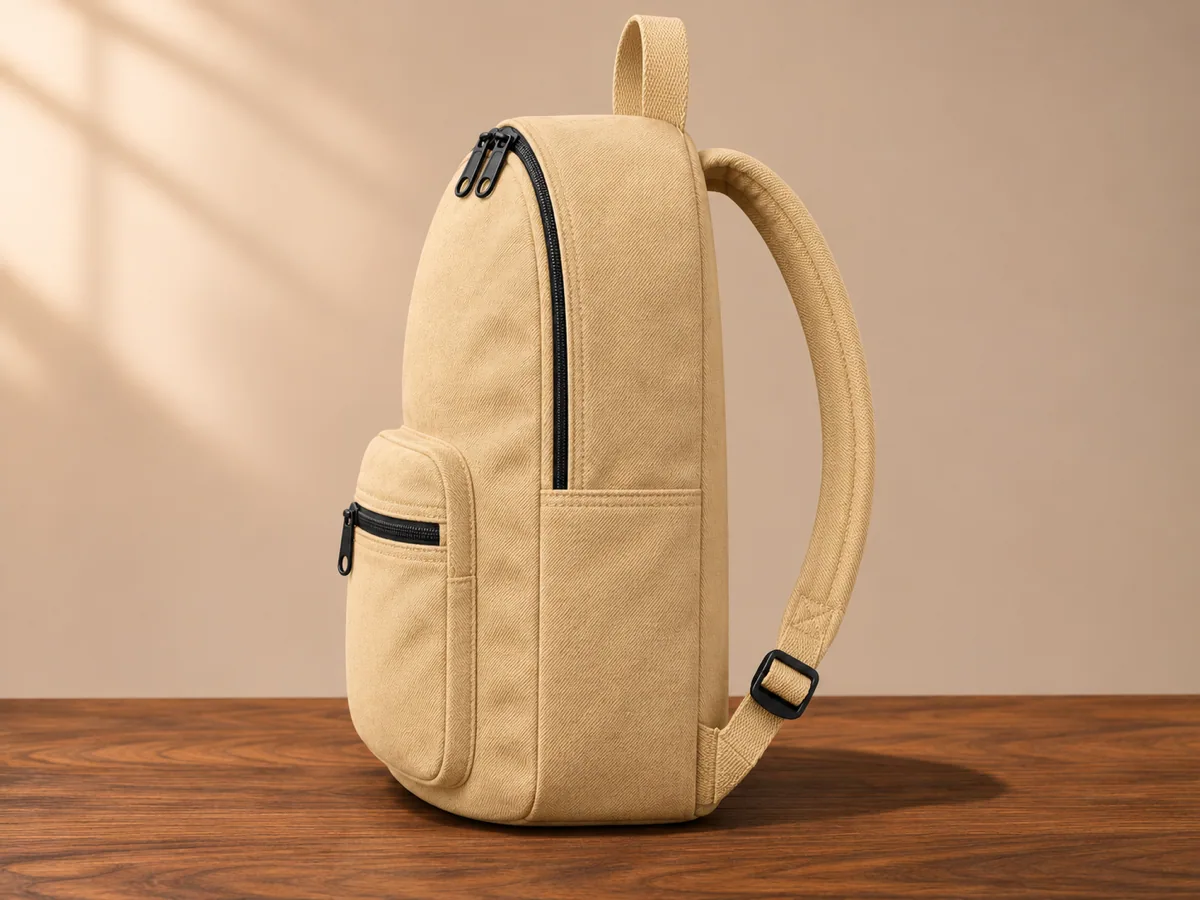
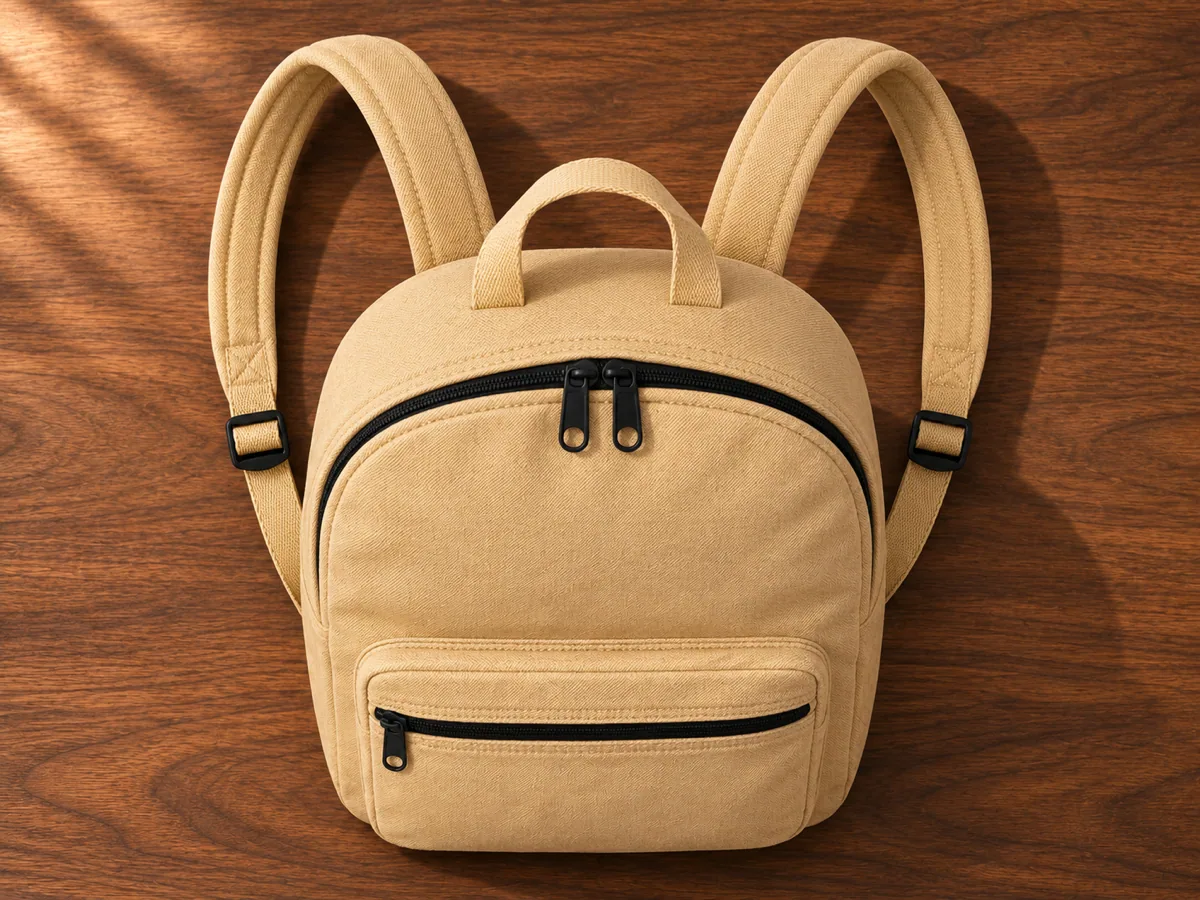
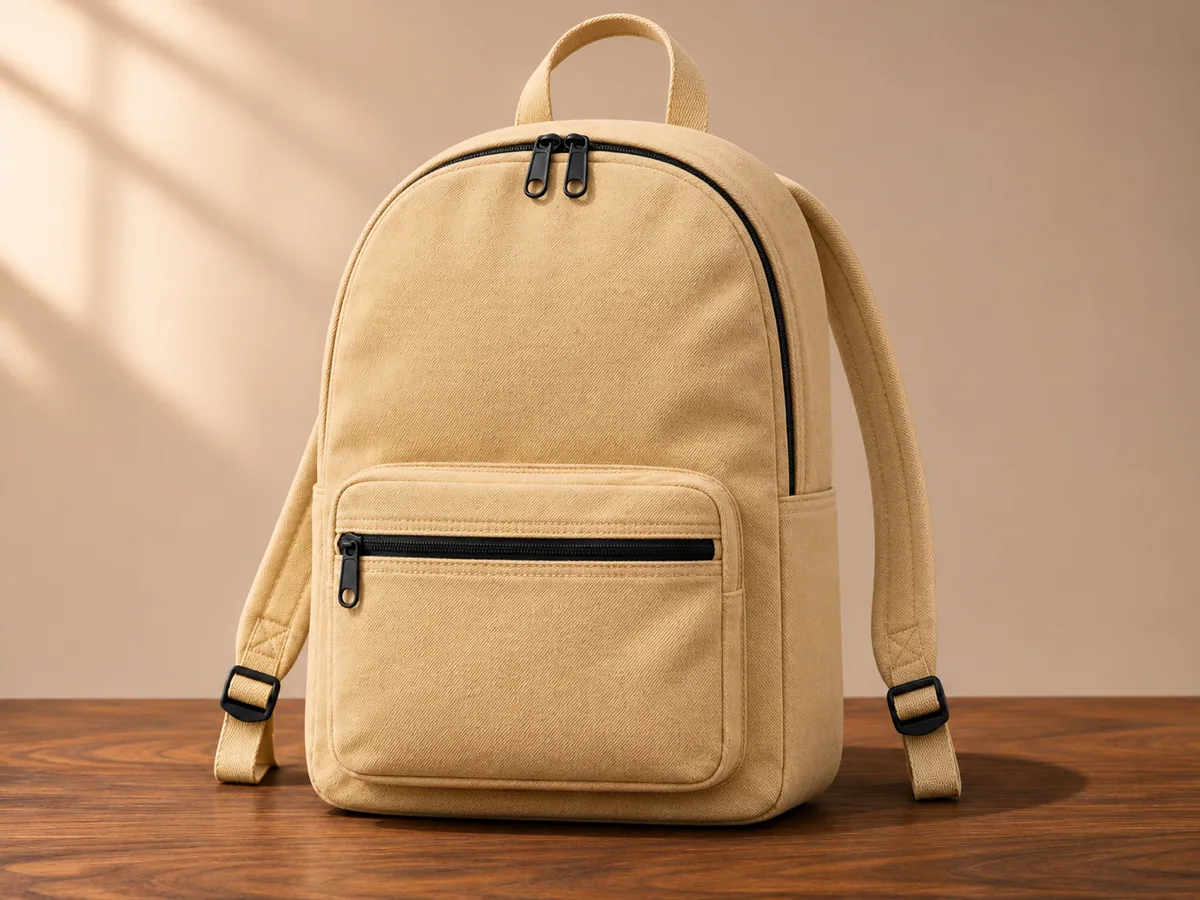
Three angles of one backpack on a table

Three views of the same backpack agree on the strap count and the color. The shot sits on a table in a wide frame. Check that a second bag does not appear and that the straps do not multiply.

16:98sTabletop holdVeo 3.1 Fast
Ref 01Front view of a sand-colored backpack with two shoulder straps
Image 1 · front
Ref 02Side view of the sand-colored backpack showing one strap and the depth of the bag
Image 2 · side
Ref 03Top view of the sand-colored backpack with the handle and both straps
Image 3 · top
Composite TargetThe sand-colored backpack on a walnut table, straps and color unchanged
16:9 · 8s · tabletop
Definition

What is reference-to-video AI?

Reference to video is a short shot built from pictures you already have. You upload one to three images, put them in order, and write one action. The model returns a single clip. It does not animate a stack of unrelated photos into a montage.

Image 1 is the subject that should stay recognizable: a person, a shoe, a bag. Later images are clues, not extra heroes. A coat detail tells the model which garment to keep. A street tells it where to stand. A second angle of the same object tells it which straps and colors belong.

That is different from a first-and-last-frame shot, which treats two pictures as the start and the end of a timeline. It is also different from the homepage flow that animates one still. Reference to video is the looser brief: several pictures, one moment, one move.

Steps

How do I turn reference images into one video?

Order the pictures, name what each one is for, write one action, pick the frame, then generate. The work happens in the console above. Nothing on this page sends you back to the homepage to finish.

  1. STEP 01

    Arrange one to three images. The first thumbnail is image 1, the subject. Image 2 and image 3 are the object, the material, or the place.

  2. STEP 02

    Write one action in the prompt. Include the camera in that sentence: a slow push-in, a slight orbit, or a short lateral move across a table.

  3. STEP 03

    Choose 16:9 or 9:16. The length stays at 8 seconds on Veo 3.1 Fast. The Generate button shows the credit cost before you click it.

  4. STEP 04

    Watch the clip on this page. Check the subject at the start, the middle, and the end, then download the MP4.

  5. STEP 05

    If you refresh or lose the connection, open My Creations and download the same task. That lookup does not start another job.

How image order is used

The page treats image 1 as the main subject and the later images as support for the roles you describe. You do not fill a separate camera box. Put the move in the action.

Use this setting, under each case, fills the ratio and, only when the prompt is empty, a starting action. It never starts a generation. If you already wrote an action, that text stays.

Compare

Reference to video vs a single photo, two frames, or text

Pick the start that matches the pictures you have. Reference to video wins when the subject, the object, and the place live in different files and still need to become one shot.

This page

Reference to video

You bring one to three pictures and one action. Image 1 leads. The other pictures supply an object or a place. Happy Horse 2 runs that shot on Veo 3.1 Fast for 8 seconds, in 16:9 or 9:16, and keeps the preview and the download here.

Home studio

One photo, then motion

The whole shot is already in a single still. Use it when you do not need a separate product angle or a separate location. It cannot carry three references that disagree about what the subject is.

Animate one photo
Home studio

First frame and last frame

You already know the opening picture and the closing picture. The model fills the time between them. That is a timeline. It is the wrong tool when the second picture is a detail, not a later moment.

Bridge two frames
Home studio

Text alone

You have no pictures. The model invents the person, the product, and the room. Useful for a blank start. Weak when a real coat, shoe, or bag has to survive the shot.

Start from text
Review

What to check before you generate again

A useful result keeps one subject, one product, and the colors you uploaded. Play the whole 8 seconds. Extra arms, a duplicated shoe, or a bag that trades places with the person are failed reads of the references, even when the file itself plays.

Fix the input, not the wording alone. Move the clearest view of the subject to image 1. Remove a picture that shows a different object. Ask for one camera move. Changing the prompt or the ratio keeps the last file and does not spend credits. Clicking Generate again is a new charge.

  • The person in image 1 is still the person at the end of the clip.
  • A product does not appear twice, and straps, sleeves, or soles do not multiply.
  • The signature color from the references is still the color in the shot.
FAQ

Reference to video questions

Inputs, the Fast reference setup, failed reads, and where the download goes.

Need more help?
Credits are shown on Generate before a job starts. View pricing

One, two, or three JPG, PNG, or WebP images. The first thumbnail is image 1, the main subject. Image 2 and image 3 add an object, a material, or a place. A fourth image is rejected before a job starts. Each file has to stay within the 20MB upload limit.

This page runs Veo 3.1 Fast, the reference mode that accepts one to three images. The clip is 8 seconds. You can switch between 16:9 and 9:16. Switching the ratio updates the next job only. It does not start one, and it leaves the previous download in place.

Play the opening, the middle, and the end. Look for an extra limb, a copied product, or a subject that swapped places with the object. If that happens, put the view you need to protect in image 1, drop the picture that conflicts, and rewrite the action as one move. A new Generate spends credits. Reference pictures guide the shot; they do not lock every pixel.

When the job finishes, the player on this page previews the MP4 and the download control saves it. Refreshing this page does not rebuild the player from memory. Open My Creations to find the same task and download it there. Finding that task does not create a second charge.

A file that is empty, over 20MB, or not a readable JPG, PNG, or WebP is stopped before you are charged. If one of several uploads fails, the images that already uploaded stay in the stack. Replace only the failed file. A failed job follows the credit refund already used on Happy Horse 2. Generate stays disabled while a request is in progress.

Get started

Build one shot from the pictures you already have

Upload the subject first, add the object or the place, describe a single move, and review the clip here.