Launch Offer
50% OFF Annual Plans

Real Estate Video Maker

Create a short property clip from one listing photo. Choose a subtle camera move, review the room details, and download a widescreen video.

One listing photoSubtle camera16:9
Cases

Three property concepts, three suggested camera moves

These static concept stills illustrate proposed compositions; they are not frames from generated videos. Each setup has its own property image, its own scene, and its own camera. Use this setting copies that scene, camera, and frame into the console. It fills the note only when the box is empty, and it does not generate.

Case 01

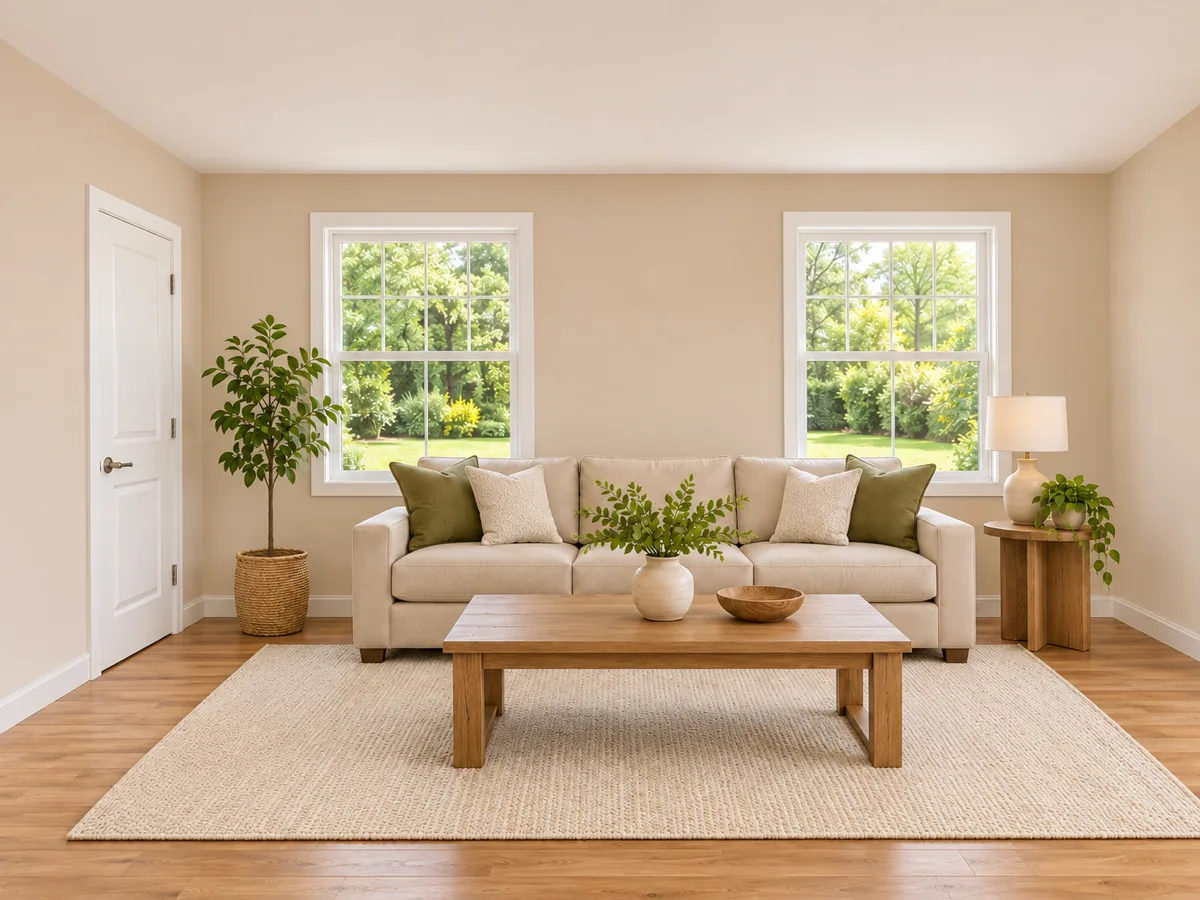
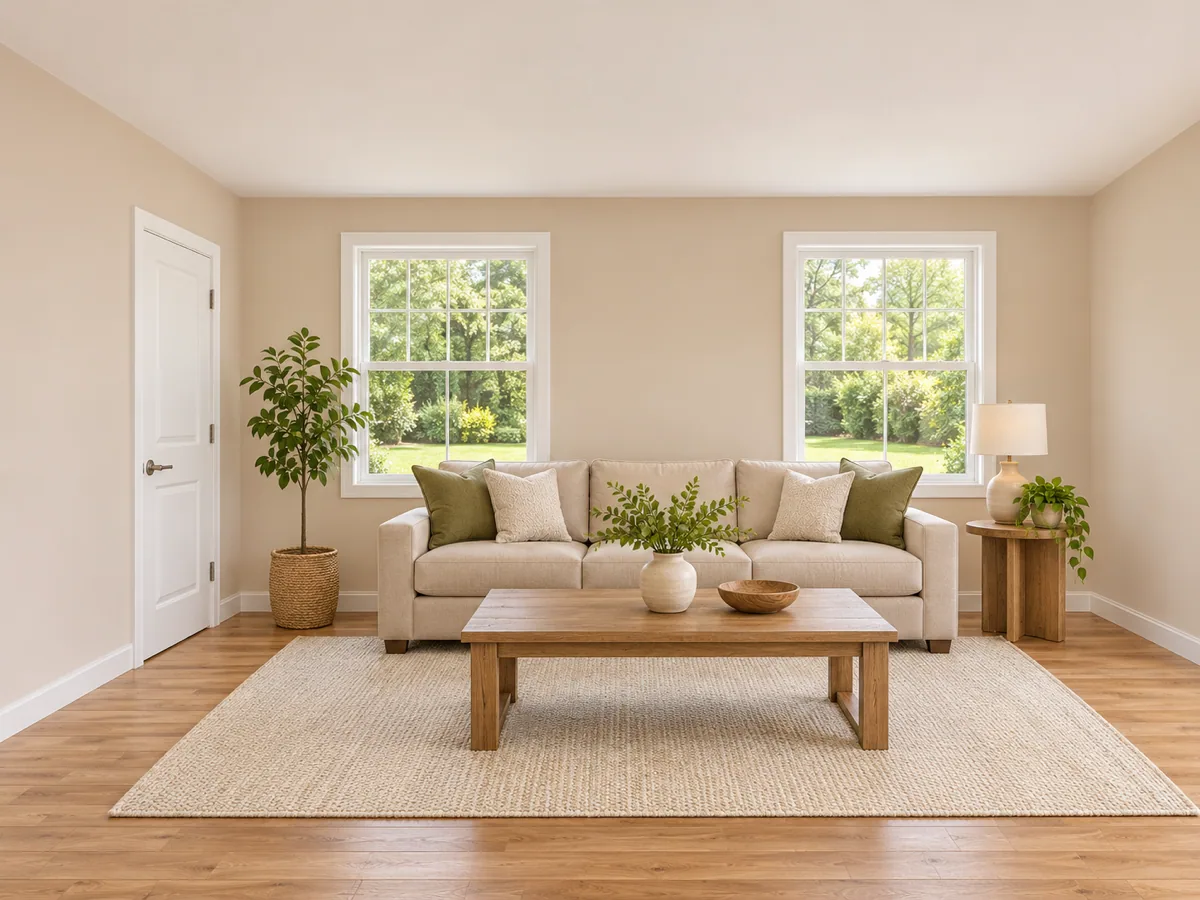
A living room pushes closer

A wide living room already shows its windows and door. The proposed slow push-in aims to move closer and leave the window count, the door, and the wall lines where they are.

16:98sRoom interiorSlow push-inVeo 3.1 Fast
Listing PhotoA wide living room with two windows and one door, furniture in place
Property concept still
Concept StillThe same living room a little closer, with the same windows, door, and walls
Concept still — proposed slow push-in
Case 02

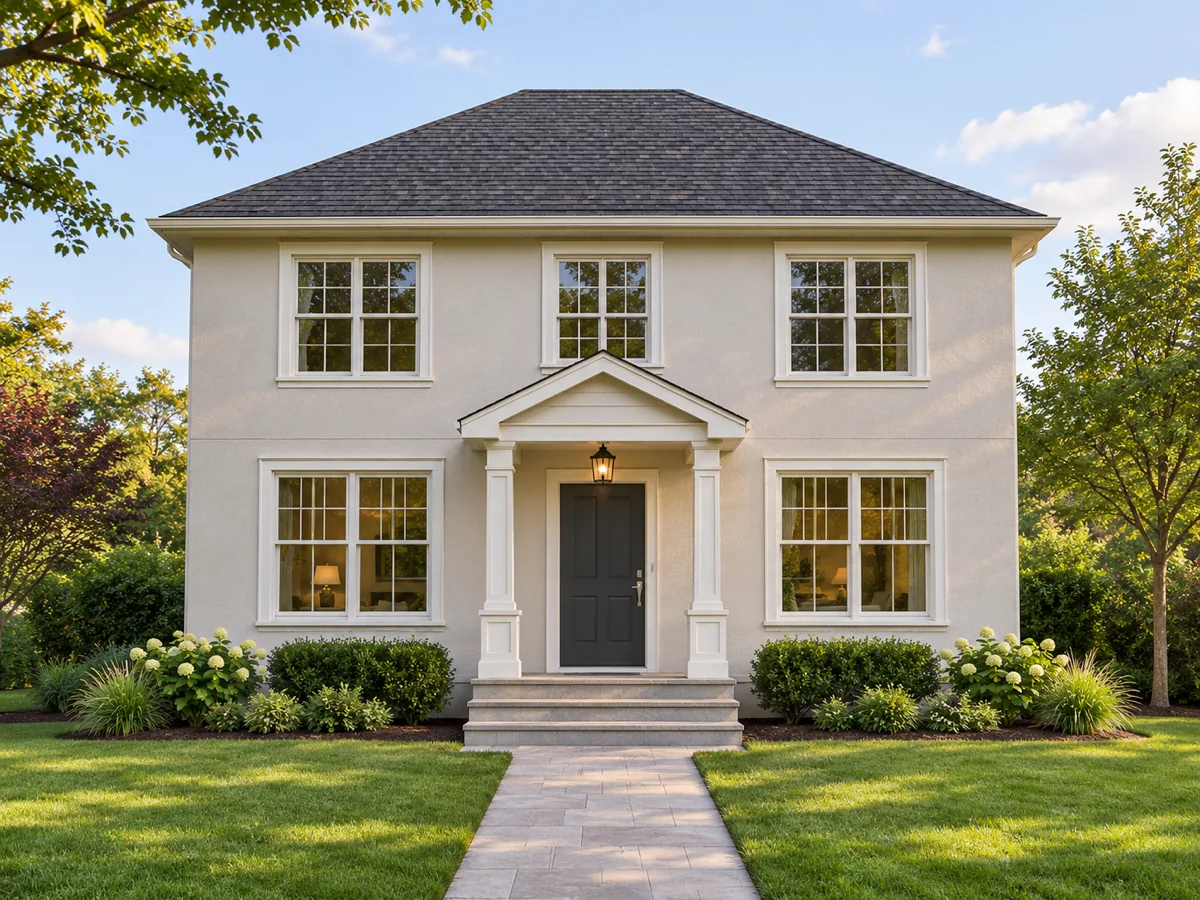
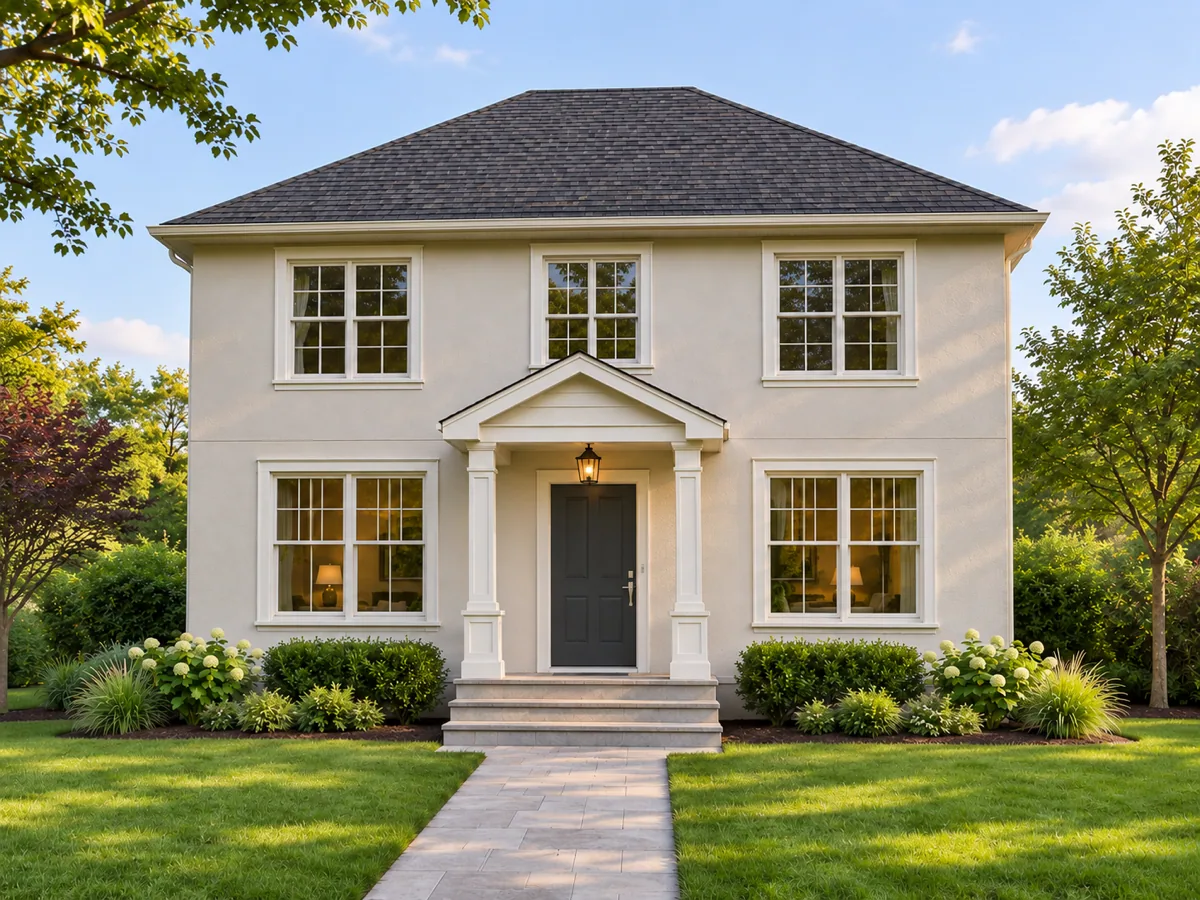
A facade shifts in a short pan

The front of a house shows the roof and the steps. The proposed gentle pan aims to move sideways a little and keep that roof and those steps.

16:98sExteriorGentle panVeo 3.1 Fast
Listing PhotoThe front of a house with a visible roof, front door, and steps
Property concept still
Concept StillThe same house front from a slight side shift, roof and steps unchanged
Concept still — proposed gentle pan
Case 03

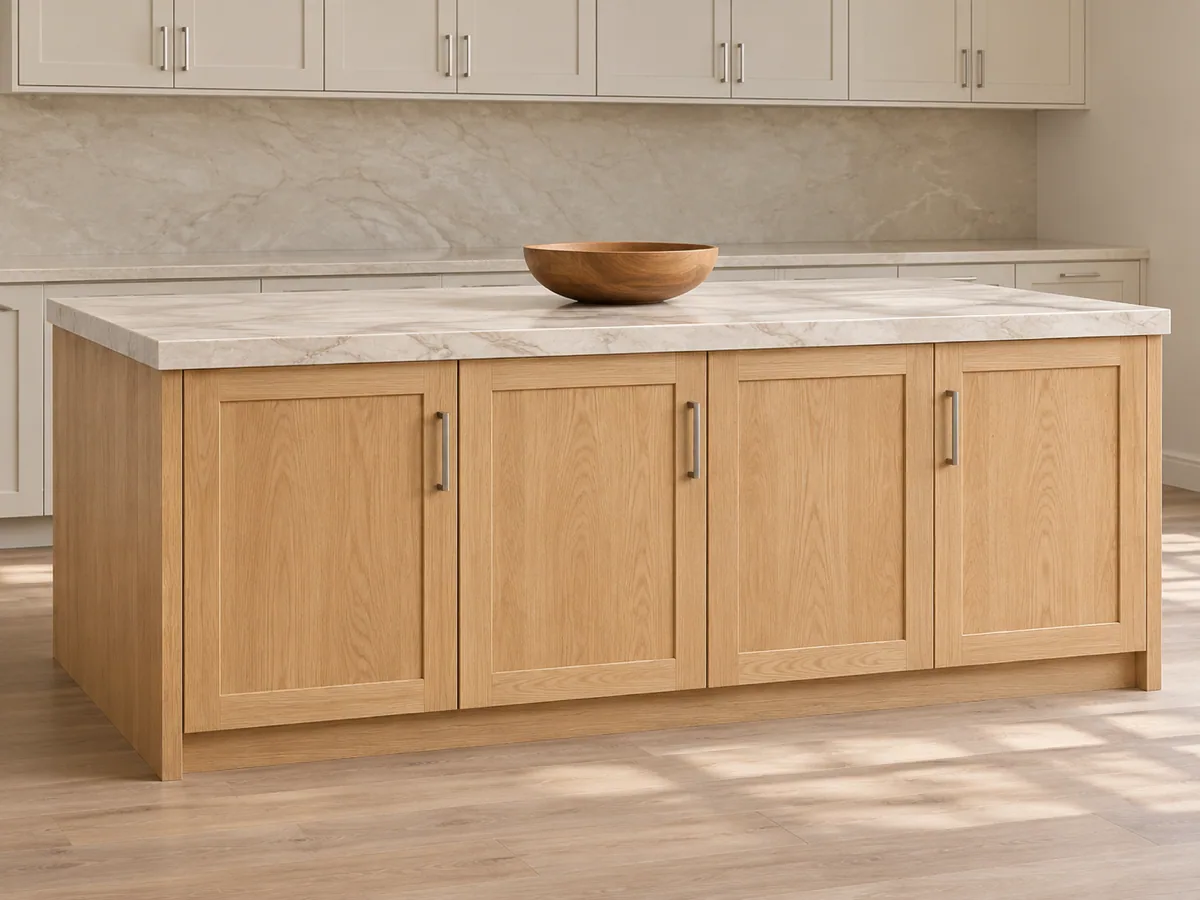
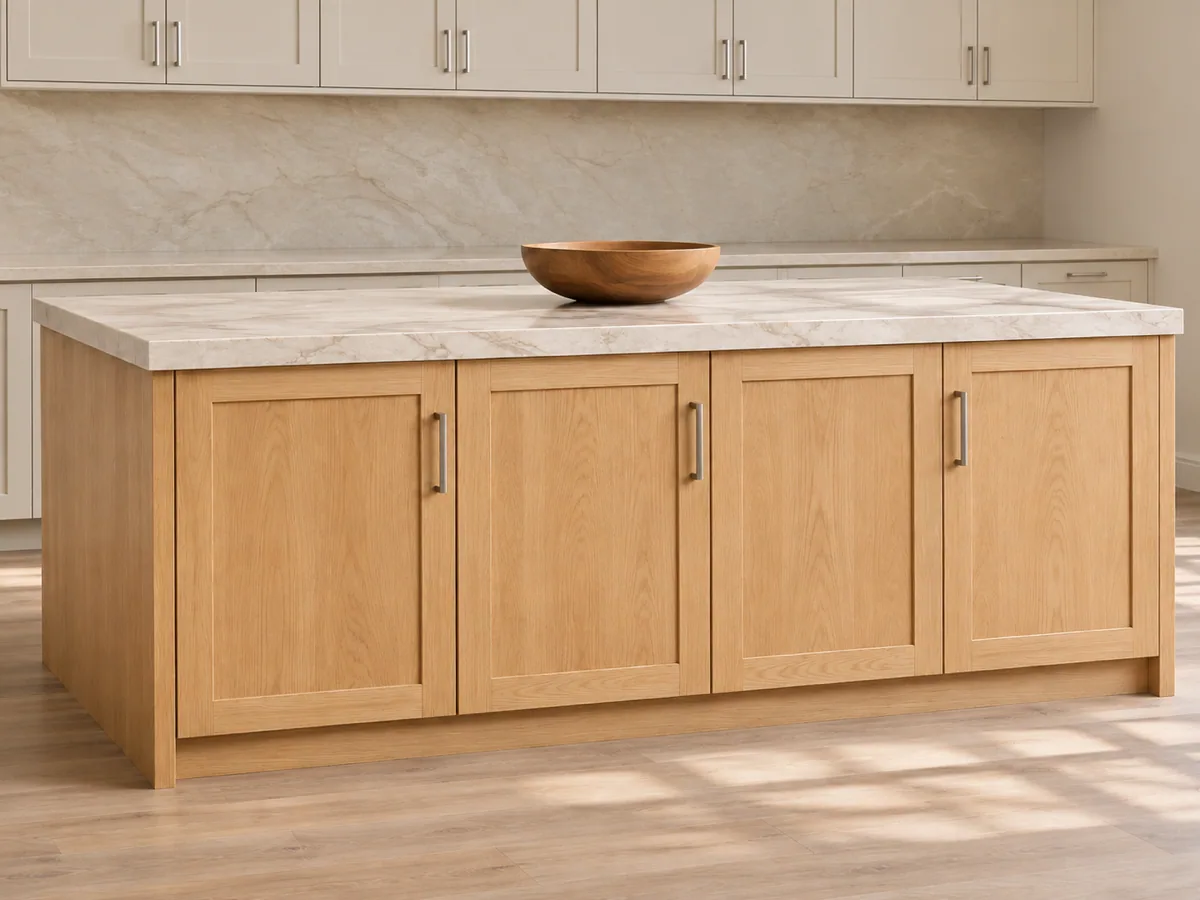
A kitchen island holds its edges

An island, cabinet doors, and a counter fill the frame. The proposed slow push-in aims to move closer and keep those edges stable.

16:98sDetailSlow push-inVeo 3.1 Fast
Listing PhotoA kitchen island with cabinet doors and a clear counter edge
Property concept still
Concept StillThe same kitchen island a little closer, cabinet doors and counter edge unchanged
Concept still — proposed detail push-in
Definition

What is a real estate photo video?

A real estate photo video turns one listing photo into a short clip with a subtle camera move. You can introduce a room, the outside of the building, or a detail such as a kitchen island, then download an 8 second widescreen video.

The move stays small. Windows, doors, walls, furniture, and the building lines are what you check. This page uses the photo you uploaded. It does not join two photos into a walk from room to room, restyle the furniture, or add a room that was not in the picture.

Use it when the photo already shows the space you want to share. If the job needs several reference pictures, or the subject is a product, start from those pages instead.

Steps

How do I make a listing clip from a property photo?

Upload one clear photo of the space, pick a subtle camera move, then check the windows, doors, and furniture before you download. The console on this page is where that happens.

  1. STEP 01

    Upload one JPG, PNG, or WebP photo, up to 20MB. Use a room, the building front, or a detail.

  2. STEP 02

    Choose Room interior, Exterior, or Detail. Choose Slow push-in or Gentle pan. Write one note about what should stay: the windows, the roof, or the counter.

  3. STEP 03

    Leave the frame at 16:9 for a widescreen clip, or switch to 9:16. The length stays at 8 seconds on Veo 3.1 Fast. The Generate button shows the credit cost before a job starts.

  4. STEP 04

    Watch the clip here. Check windows, doors, wall lines, and furniture at the start, the middle, and the end.

  5. STEP 05

    Download the MP4 from this page. If you refresh, open My Creations and download the same task.

How to keep the room intact

A useful note is one constraint. The windows and the door stay. The roof and the steps stay. The cabinet edges and the counter stay. A new room, new furniture, and a walk to the garden in the same note asks for three photos. Use this setting, under each case, fills an empty note and sets the scene, the camera, and the frame. It does not replace a note you already wrote, it does not remove the uploaded photo, and it does not generate.

A file that is not a JPG, PNG, or WebP, or that is over 20MB, is stopped before a charge. A second photo is not accepted. Changing the scene, the camera, the note, or the frame does not spend credits and does not remove the last download. The next Generate is a new job.

Compare

Listing clip vs several references, a product shot, or a plain photo

Use this page when one property photo should get a short camera move and the windows, walls, or facade have to stay recognizable. The other starts win when the scene needs several pictures, the subject is a product, or the photo is not a listing.

This page

Real estate video maker

You already have one listing photo. Slow push-in or Gentle pan stays on that room, facade, or detail. Windows, doors, walls, and the furniture layout stay the ones in the photo. You download the widescreen clip here. You do not upload a second photo to invent a walk through the house, restyle the furniture, or add a room that was not there.

Reference to video

A scene built from several pictures

Reference to video takes up to three pictures to guide a subject and a scene. A listing clip here starts from the single photo where the room already exists, so the windows and walls can match what you uploaded.

Start from references
Product video

A product shot, not a room

Product video is a camera move around packaging. This page is the better start when the photo is a room, a facade, or a kitchen detail and the architecture has to stay recognizable.

Animate a product
Home studio

A photo that should move, but not as a listing

A portrait, a product, or a place needs a general move. This page is the better start when the picture is already a property photo and the openings and wall lines have to stay.

Animate a photo
Review

What to check before you generate again

Play the whole eight seconds. The windows and doors should still match the photo, and the walls should still meet where they met. Mirrors, glass rails, and the bent edge of a wide lens are the hard case: a new opening, a missing door, a wall that slides, or a reflection that becomes another room means the picture or the note was doing too much.

Use a clearer photo or shorten the note to one constraint, then generate again. That click is a new charge. Switching the scene, the camera, or the frame before you click does not start the job and does not clear the uploaded photo. A generated clip can still move a highlight between renders. Watch the opening, the middle, and the end before you download.

  • The windows and doors are the same openings as in the photo.
  • The walls and the furniture layout have not moved into a new plan.
  • A reflection stays a reflection, and no extra room has appeared.
FAQ

Listing clip questions

The property photo, the scene and camera, a glass edge, and where the download goes.

Need more help?
Credits are shown on Generate before a job starts. View pricing

One JPG, PNG, or WebP property photo you have the right to use, up to 20MB. It can be a room, the outside of the building, or a detail such as a kitchen island. A damaged file or the wrong type is stopped before a charge. This page does not join an interior and an exterior into a walk from one to the other.

Room interior, Exterior, or Detail, and Slow push-in or Gentle pan. The scene choice changes what the clip is asked to protect. The camera choice changes the move. Switching either one does not start a job. This page does not add rooms, restyle the furniture, or publish the listing.

Play the start, the middle, and the end. Count the windows and doors, and look at the wall lines. A new opening, a missing door, a wall that moves, or a reflection treated as another room means the photo or the note was doing too much. Use one photo, one move, and a note that names the windows, the roof, or the counter. A generated clip can still shift a highlight from one render to the next.

The player on this page previews the MP4, and the download control saves it. Refreshing the page does not rebuild that player from this browser. Open My Creations and download the same task there. Opening that task does not create a second charge.

No. Switching Room interior, Exterior, and Detail, switching Slow push-in and Gentle pan, editing the note, or switching 16:9 and 9:16 updates the next job only. The uploaded photo stays. The previous download stays. Generate stays disabled while a request is in progress. Clicking Generate again is a new charge. A failed job follows the credit refund already used on Happy Horse 2.

Get started

Turn one listing photo into a short clip, then download it here

Upload a property photo, pick Room interior and Slow push-in, or switch the scene and the camera, and review the 8 second widescreen video on this page.