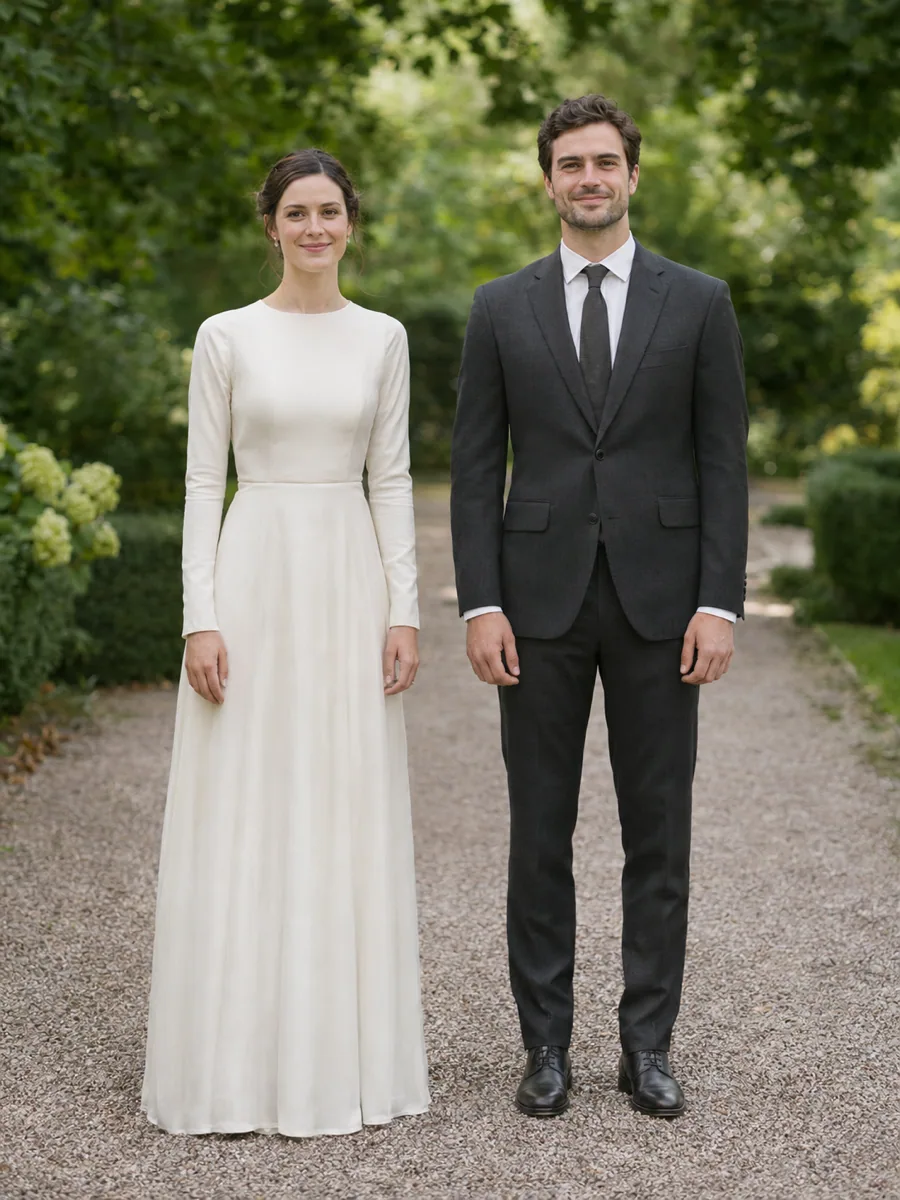
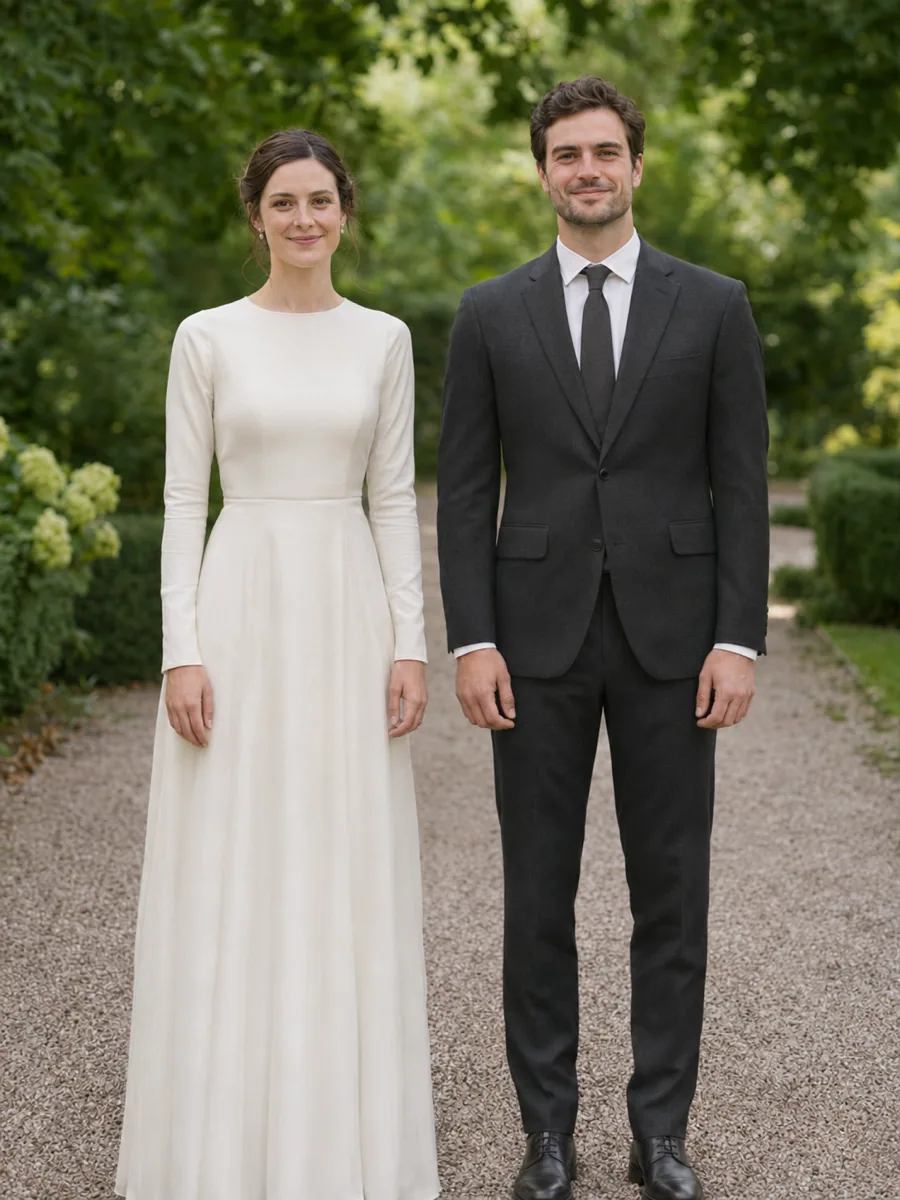
A couple portrait moves closer
Two adults already stand together in wedding clothes. Gentle portrait motion adds a slow push closer while both faces stay the faces in the photo.


Bring a wedding photo to life with subtle motion. Animate a portrait, veil or detail shot and download a short wedding keepsake video.
Each setup is a separate shot: its own wedding photo, its own motion, and its own frame. Use this setting copies that motion and frame into the console. It fills the note only when the box is empty, and it does not generate.
Two adults already stand together in wedding clothes. Gentle portrait motion adds a slow push closer while both faces stay the faces in the photo.


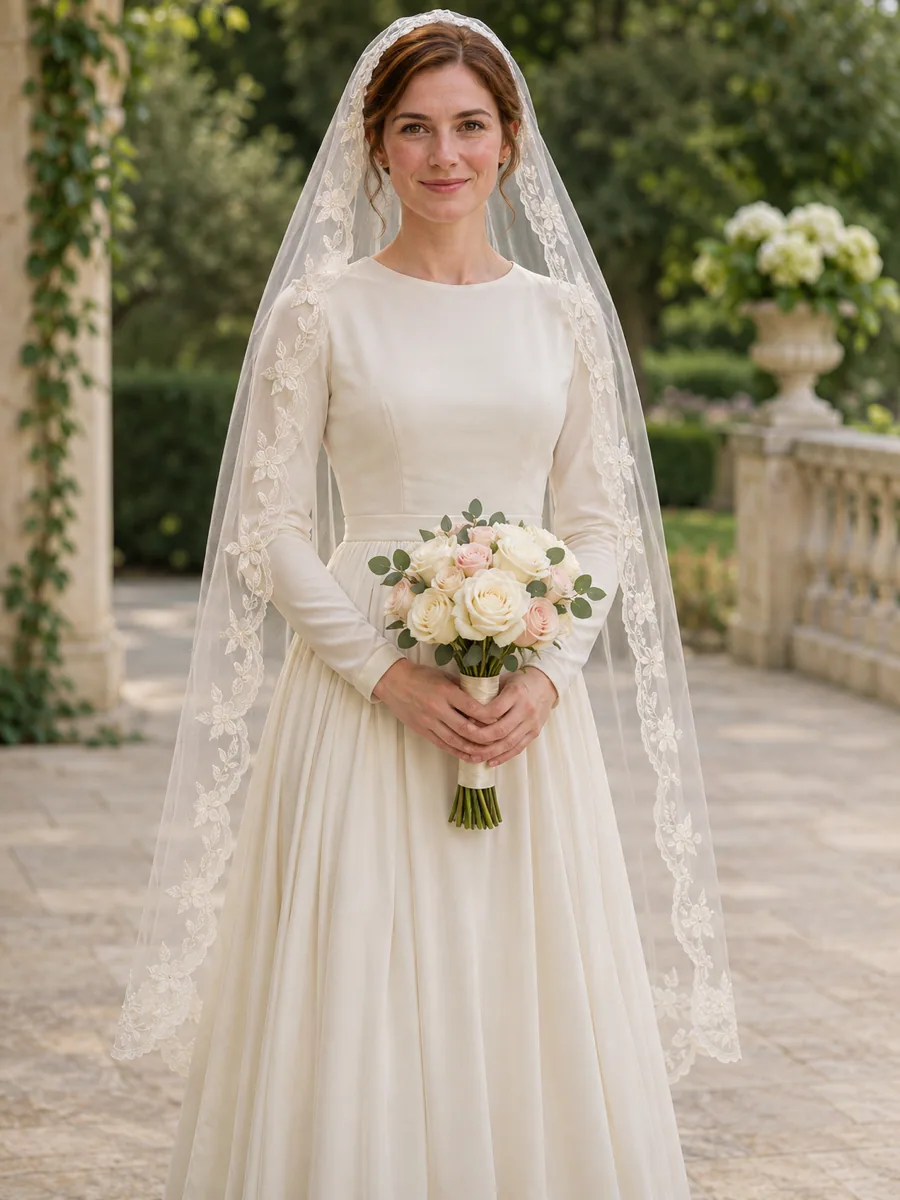
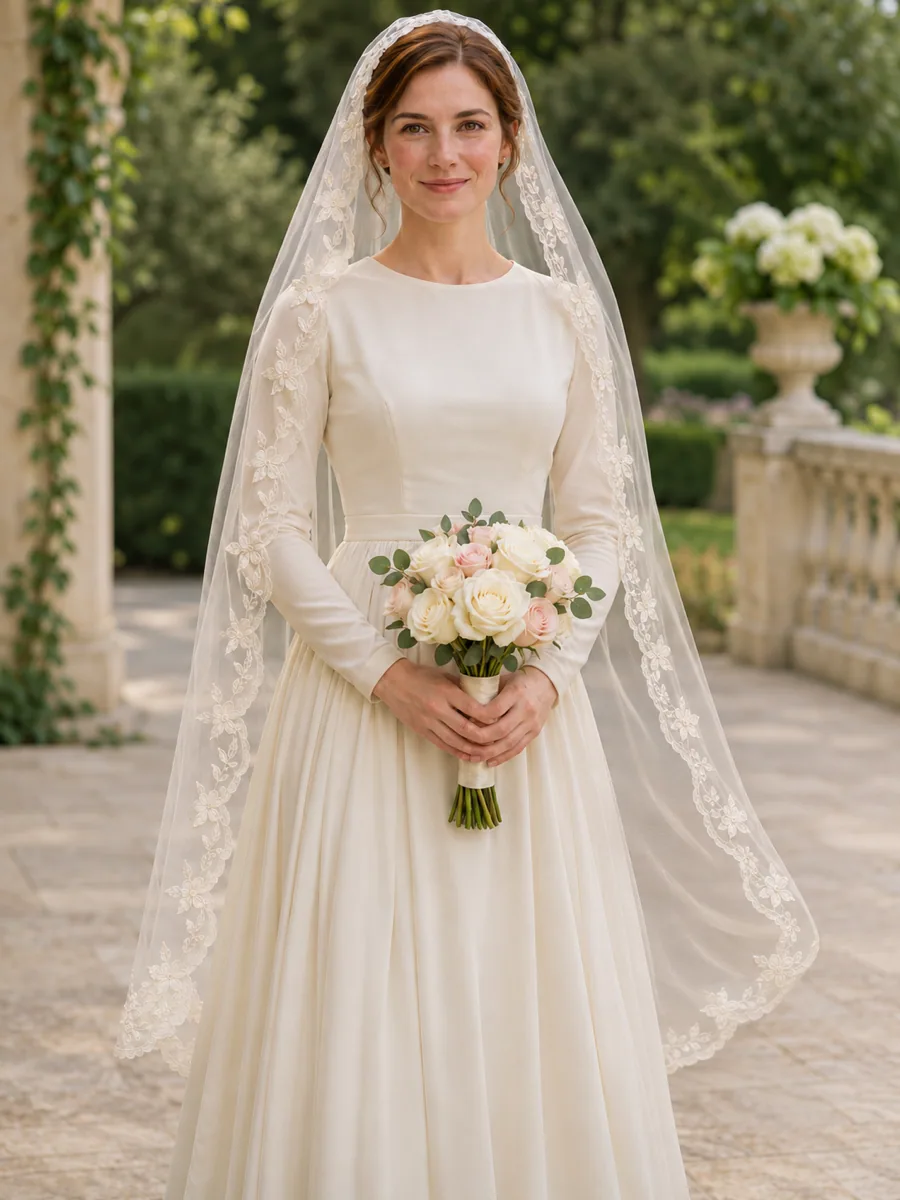
The bride holds a bouquet under a lace veil. Veil breeze moves the lace and leaves the bouquet shape and the dress where they are.


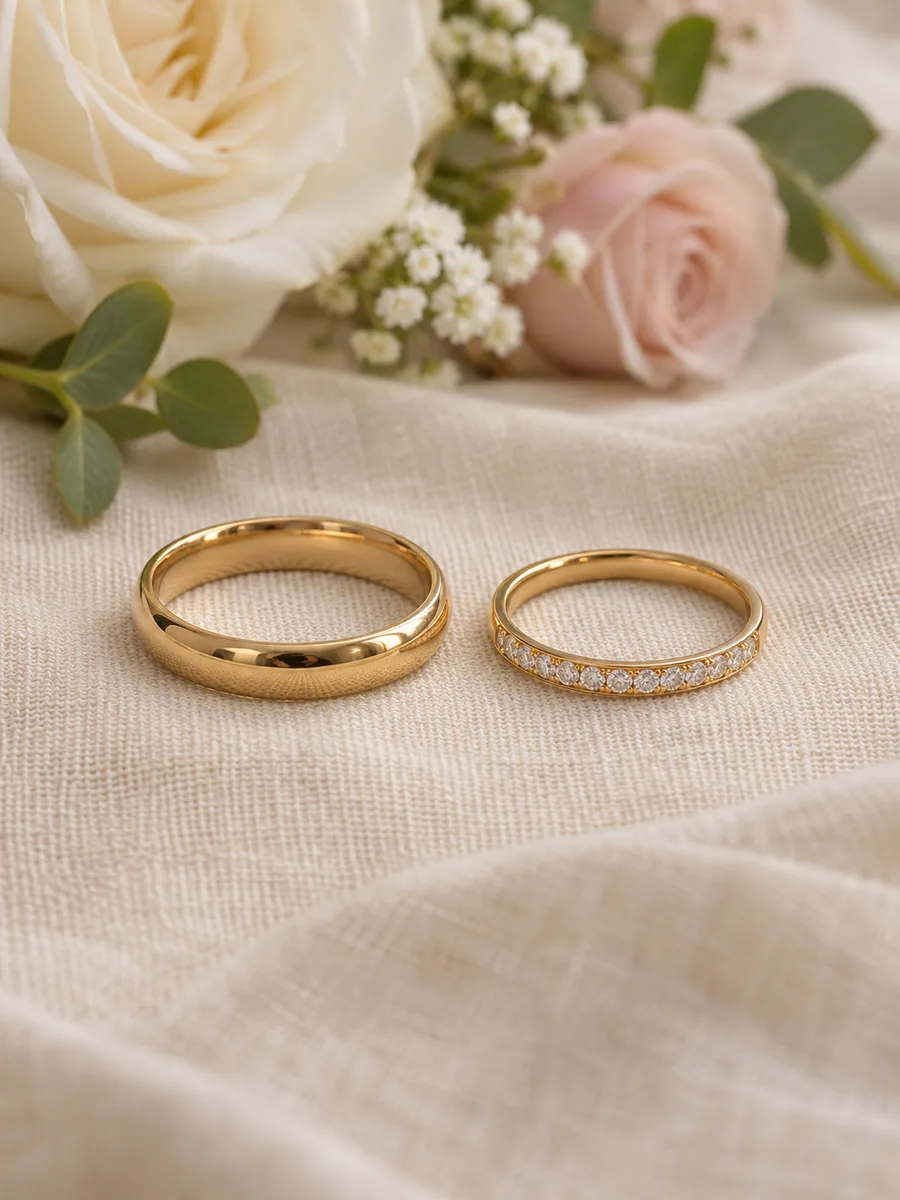
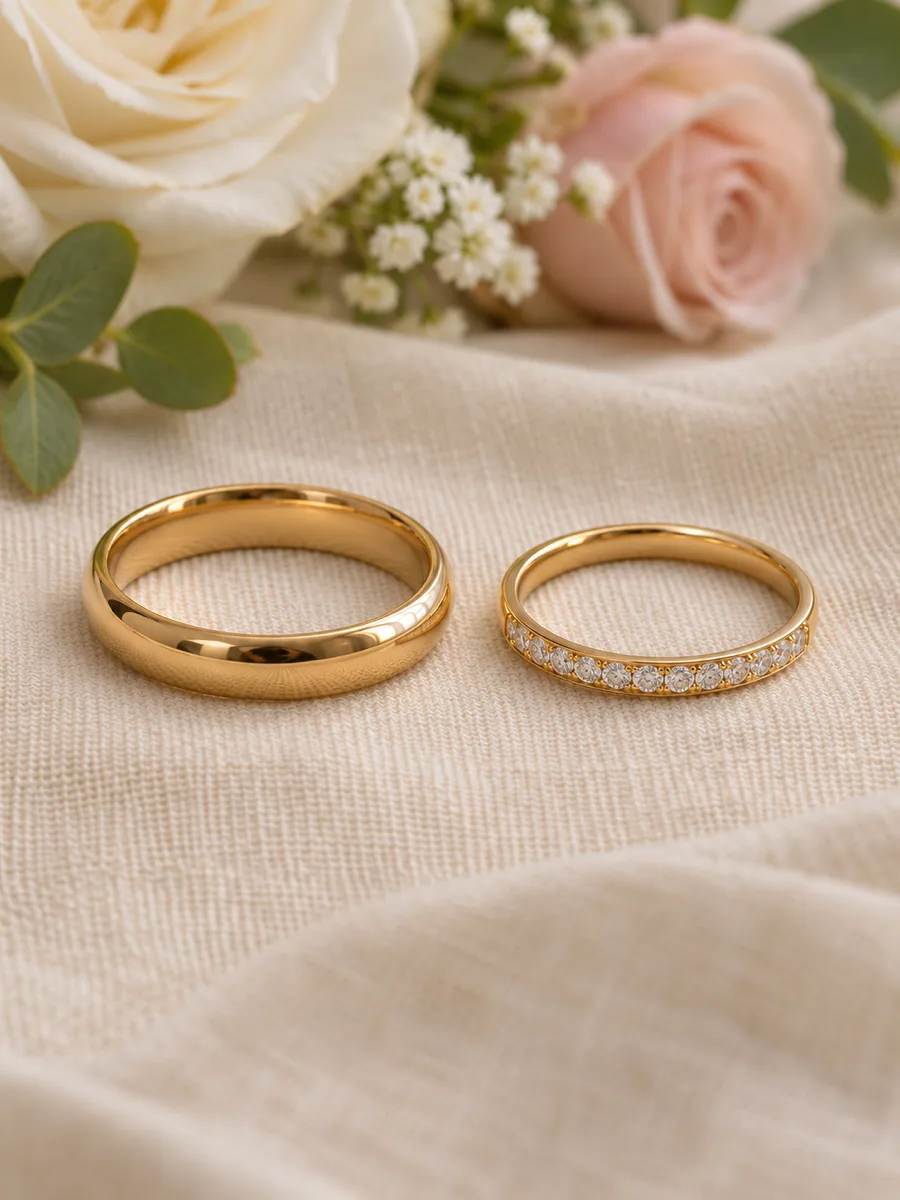
Two rings rest on a ceremony table. Detail push-in moves closer with a soft glimmer and does not add people or change the metal.


A wedding photo video turns one wedding photo into a short keepsake. You can start from a couple portrait, a veil and bouquet, or a detail such as rings on the ceremony table, then download an 8 second clip.
The motion stays small. Faces, wedding clothes, jewelry, the venue, and the light are what you check. This page uses the photo you uploaded. It does not change the dress, join two portraits, add a song, or cut a full ceremony.
Use it when the picture already looks like the day you want to share. If two people should hug, or a product should get a camera move, start from those pages instead.
Upload one wedding photo, match a motion to what is in the frame, pick the share ratio, then check the faces, the clothes, and the jewelry before you download. The console on this page is where that happens.
Upload one JPG, PNG, or WebP photo, up to 20MB. Use a couple portrait, a veil, or a detail shot.
Choose Gentle portrait motion, Veil breeze, or Detail push-in. Write one note about what should stay: the faces, the lace, or the rings.
Leave the frame at 9:16 for a vertical clip, or switch to 16:9. The length stays at 8 seconds on Veo 3.1 Fast. The Generate button shows the credit cost before a job starts.
Watch the clip here. Check faces, wedding clothes, lace, and jewelry at the start, the middle, and the end.
Download the MP4 from this page. If you refresh, open My Creations and download the same task.
A useful note is one constraint. Faces stay steady. The lace and the bouquet keep their shape. The rings and the table stay still. A new venue, a different dress, and a second couple in the same note asks for three photos. Use this setting, under each case, fills an empty note and sets the motion and the frame. It does not replace a note you already wrote, it does not remove the uploaded photo, and it does not generate.
A file that is not a JPG, PNG, or WebP, or that is over 20MB, is stopped before a charge. A second photo is not accepted. Changing the motion, the note, or the frame does not spend credits and does not remove the last download. The next Generate is a new job.
Use this page when one wedding photo should become a short keepsake and you want the dress, the lace, or the rings to stay recognizable. The other starts win when the job is a hug, a general photo, or a product.
You already have one wedding photo. Gentle portrait motion, Veil breeze, or Detail push-in keeps the faces, the dress, the jewelry, and the venue in that photo. You download the vertical keepsake here. You do not upload a second portrait, change the gown, add a song, or cut a full ceremony.
A hug starts from two people already in one photo and asks them to embrace. This page is the better start when the photo is a wedding portrait, a veil, or rings, and the motion should stay subtle.
Make a hugA portrait, a product, or a place needs a general move. This page is the better start when the picture is already a wedding photo and the dress, lace, or rings have to stay recognizable.
Animate a photoProduct video is for packaging and a camera move around a product. Detail push-in here stays on the rings and the ceremony table in the wedding photo, without turning them into a product ad.
Animate a productPlay the whole eight seconds. Faces should still match the photo, the dress should still be that dress, and small jewelry should still read as jewelry. Lace, a ring on a finger, and tiny stones are the hard case: a melted face, a gown that changes, or an extra person means the picture or the note was doing too much.
Use a clearer photo or shorten the note to one constraint, then generate again. That click is a new charge. Switching the motion or the frame before you click does not start the job and does not clear the uploaded photo. A generated clip can still move a highlight between renders. Watch the opening, the middle, and the end before you download.
The wedding photo, the three motions, a fine detail, and where the download goes.