A tight crop is a finished decision until the layout changes. The headshot that looked right in a square grid is too tall for a website header. The product photo that fills the frame has nowhere to put a price. The portrait that would make a story is the wrong shape for a banner. Search bars file that job under several names. Uncrop AI, Uncrop Image Online, an AI Image Expander, an AI Photo Expander, and a Free AI Image Extender are, on the pages that rank for them in November 2026, requests for the same operation: keep the photograph you already have, and generate a believable scene in the new space around it.
This guide is about how to make that larger frame on purpose. The worked example is Uncrop AI, read on November 2, 2026. It is a browser editor. You upload one photo, choose a ratio or a custom size, place the original inside the new canvas, and download an expansion. It is an independent service. It does not recover pixels that the camera never recorded. This page is a guide on happyhorse2.video. Happy Horse 2 makes short video from photos and prompts. It does not run this outpainting editor, and a credit balance here does not spend there.
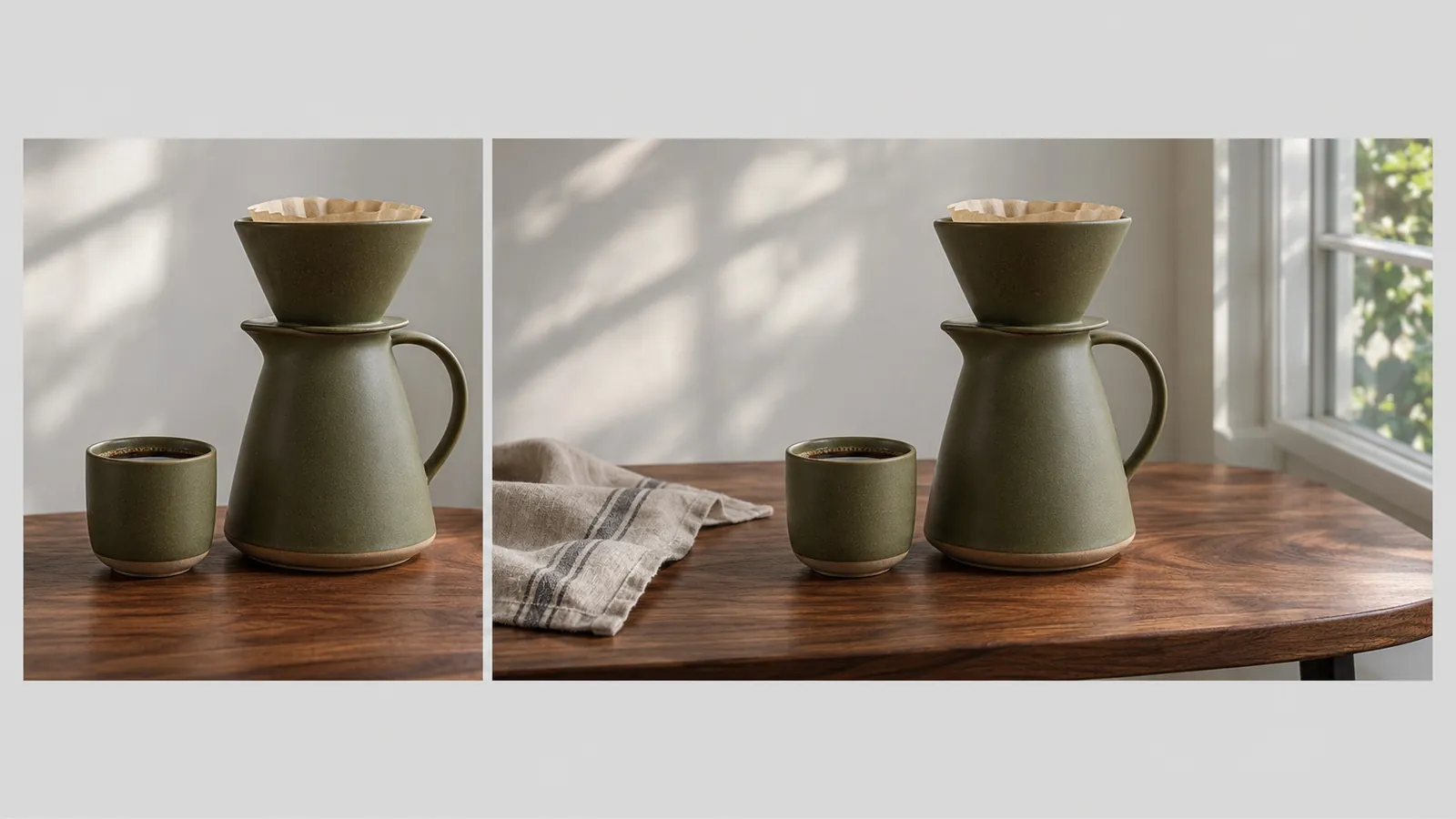
The five names are one job
People do not arrive with a shared vocabulary, and the vocabulary matters because it hides a technical claim.
Uncrop AI is the product name and the shortest search. Uncrop Image Online is the same request with the place attached: they want it in a browser, without an install. An AI Image Expander is the mechanic. The canvas grows, and a model paints the empty region. An AI Photo Expander is that mechanic said by someone who is holding a photograph rather than a graphic. They care that a face, a product, or a room survives. A Free AI Image Extender is the price question wearing a feature name. "Free" and "extender" travel together because a lot of older tools watermark the result, cap the resolution, or stop after one preview. A how-to that treats those five phrases as five different apps will send someone through the wrong checkout.
On Uncrop AI's own pages, the phrases collapse. The homepage title is "Uncrop Image Online – Free AI Image Expander." The body calls the same tool an expander for banners, listings, and stories. The press material around the October 2026 launch uses "AI image expander" and "AI image extender" for one workflow. The useful distinction is not the label. It is what the tool promises to leave alone. A resizer stretches pixels. A crop throws pixels away. An expander, in this sense, keeps the original rectangle and invents only the margin.
That last verb is the one to keep in view. Uncropping sounds like undoing a crop, as if the missing shoulder were hiding in the file. It is not. A crop deletes the pixels outside the rectangle you kept. No expander puts them back. What you get is a new, plausible continuation of the edges: more table, more sky, more wall. If the thing you needed was a hand that the camera cut off, you are asking the model to invent a hand. Sometimes that invention is good enough for a banner. Sometimes it is the reason you take another photograph.
What outpainting is, and which Uncrop this is
The technique has a name older than this website. Outpainting generates image content beyond the original borders. DALL·E popularized the word. Photoshop's Generative Fill made it a menu item. In June 2023, Stability AI released a separate tool also called Uncrop, powered by Stable Diffusion XL. PetaPixel's report that month described a free tier and a paid plan around seven dollars a month, and it quoted the usual caution: accuracy drops when a lot of the picture is missing, because the model is guessing from the pixels that remain.
That 2023 tool and the site this guide walks through are different products that happen to share a verb. Uncrop AI, the service at uncropai.pro, announced a browser editor in mid-October 2026. A SubmitPR notice dated the public launch to October 13. An 1888PressRelease notice the next day, datelined Wilmington-Newark, described the same launch and quoted Miles Carter, named there as founder, on the problem of a useful photo becoming unusable because the next layout wants a different shape. The company material places the service in Newark, Delaware, and says it is independent of the model providers it connects to. If a tutorial, a screenshot, or a price from 2023 is what you remember, check the domain before you assume the credits, the ratios, or the compositor are the same.
The 2026 editor is narrow on purpose. There is no prompt box for a new scene in the steps the homepage prints. You do not ask it to change the season, swap the product, or restyle the person. You give it a frame. It studies the colors, grain, and vanishing lines near the borders, then continues tables, floors, foliage, and skies so the seam can disappear. The homepage calls that outpainting. The practical test is simpler. At full size, can you find the old edge.
How the original stays put
The part worth understanding, before you spend a credit, is the compositor. Uncrop AI's FAQ, and the October launch notes, describe a two-stage picture.
The model paints the new canvas. When the result comes back, the editor lays your original photo back on top at the canvas resolution and blends a thin strip along the seams. The subject keeps its position and its scale. The generated pixels live in the margin and in that strip. Very large photos are scaled down to fit the canvas limits, so "original" here means the photograph as placed on that canvas, not a promise that a 50-megapixel file returns at 50 megapixels.
That design is why an AI Photo Expander can be safer than asking a general image model to "make this wider." A general model redraws the whole frame. A face drifts. A logo on a bottle changes spelling. A label that was sharp becomes a texture. Putting the source back on top is how this editor tries to stop that drift. It does not make the seam free. The blend strip is still generated, and a hard horizon, a repeating tile, or type that ran off the edge can break there. Watch the strip. The middle of the subject should be the part you already approved.
A frame that grows in both directions is two jobs, not one romantic wider picture. The pricing page says a canvas that adds space both at the sides and above or below runs in two passes and is charged for each. The editor shows the total before you generate. A portrait turned into a 16:9 header is often that two-pass case. A product shot that only needs empty table on the right can be one pass. Choosing the side is a cost decision and a quality decision. One long extension gives the model one edge to continue. Two axes give it two edges and a corner, which is where perspective usually goes strange.
How to make the wider frame
Everything described here happens in the browser. The homepage says there is no app to install, and that the same flow runs in mobile browsers on iPhone and Android. You can start from the camera roll.
Put one photograph on the canvas
Upload a JPG, PNG, WebP, or HEIC, up to 50 MB, with the long side at most 6,000 pixels. Drop the file on the page or use the upload control. The editor opens with your photo inside a larger canvas. The site also offers sample photos if you want to learn the handles before you use a client file.
One picture per run. A collage, a screenshot of a layout, and a photo with another photo taped on the edge all become part of the scene the model tries to continue. If you only need one object extended, crop to that object first, in any ordinary editor, and upload the crop.
Choose the frame, then place the photo
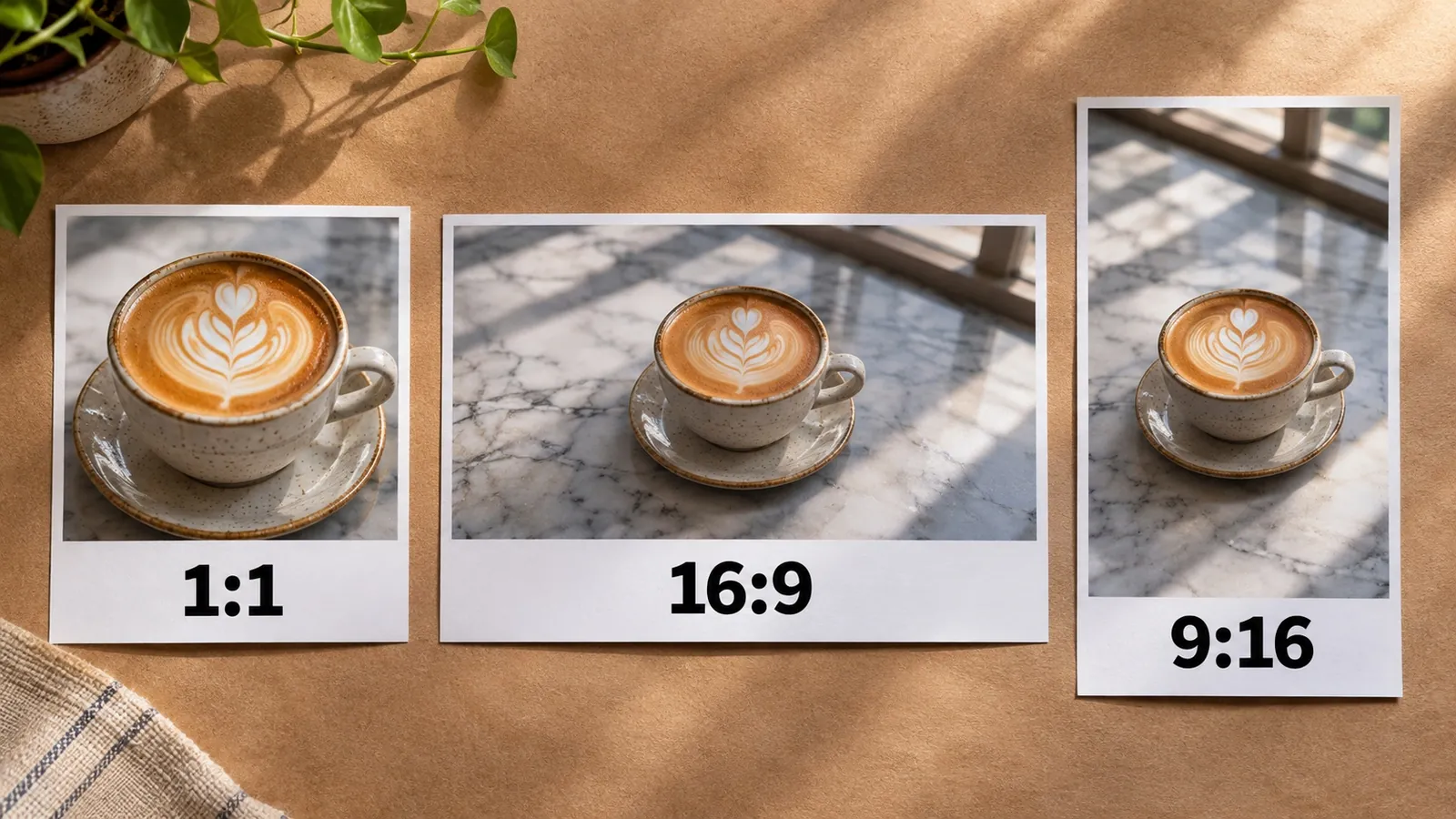
The ratio list, as printed on November 2, 2026, is Original, 1:1, 16:9, 9:16, 3:2, 2:3, 4:3, 3:4, and 21:9. You can also type a width and a height. The long side of the canvas stops at 6,000 pixels, and the whole canvas stays under about 16.7 megapixels. Drag the frame handles to add space on the sides you actually need. Then drag the photo so the subject sits where the layout wants it.
Placement is the creative step the model cannot guess. A banner with the product on the left and empty surface on the right is a different picture from the same product centered with a little margin all around. The empty side is where the headline will go. If you center the product and then discover you needed the margin on the right, you generate again. Decide the layout before you press the button.
A few shapes cover most of the jobs people bring to an AI Image Expander:
- 16:9 is the website header, the YouTube thumbnail, and a lot of desktop hero space. A vertical original becomes this shape by growing sideways, which is the two-pass case when you also add room above the head.
- 9:16 is the story, the reel cover, and the vertical ad. A horizontal original grows up and down. Sky and floor continue more willingly than a crowded street.
- 1:1 is the marketplace tile and the profile grid. It is often a small expansion, which is the kind that looks most natural.
- 4:3, 3:2, and their vertical twins are the print-adjacent and camera-native shapes. Use them when a template asks for those numbers rather than "wide."
- 21:9 is a cinematic strip. It asks the model to invent a lot of lateral scene. Use it when the background is simple.
Custom pixels matter when an ad spec is exact. A preset that is close is still the wrong file if the slot is 1200 by 628. Type the size. Stay inside the megapixel cap. If the math does not fit, shrink the long side rather than hoping the upload will.
Generate, then look at the seam
Fast costs 10 credits. Pro costs 20. The pricing page says Pro generates the new area at a higher resolution. Both modes use the same editor. You pick the mode per run. Generate paints the empty canvas. Regenerate spends the same amount again and gives you another interpretation of the surroundings. There is no slider for "more creative." The variation is the regenerate button.
Download a preview if you are checking a seam, and the full file when the seam holds. The site says finished downloads do not carry an added watermark, and that results stay in My Creations so you can download them later. A failed generation returns the reserved credits. A generation you simply dislike does not. That second kind is a new run.
Photographs that expand cleanly
The model continues whatever is at the border. That sentence is the whole craft lesson.
A wall, a tabletop, a sky, a sheet, or a soft studio backdrop gives the model a direction. The color is stable, the texture repeats in a way a person expects, and a small error reads as more of the same surface. A product on a sweep, a cup on marble, a person against a plain wall: these are the files an expander is built for. The homepage leans on exactly those jobs. A headshot that needs breathing room for a team page. A product that needs a side for type. A vertical travel frame that has to become a booking-page header without cutting the building in half.
The opposite file is a border full of unique information. Text cut by the frame will be continued as more letter-like shapes, and they will not spell anything you can ship. A face sliced by the edge forces a generated forehead or a generated ear in the blend strip. A patterned rug, a brick wall with a broken corner, a horizon that is not level, and a mirror that already contains the room are the usual places a second run still looks wrong. Hands, glasses, and jewelry that touch the old edge belong in that list. If the important object touches the border, crop a little looser before you upload, so the object sits fully inside the original rectangle and the model only has to continue background.
Light has to agree. The editor can match a window falloff if that falloff is already in the photo. It will not correctly invent a second light you cannot see. A flash falloff that dies at the edge often becomes a bright band in the extension. Shoot, or crop, so the light at the border is the light you want more of.
Scale is part of the same problem. The canvas cap is about 16.7 megapixels, and a very large original is scaled down to fit. If you need a print at the original pixel size, expanding inside this limit and then upscaling is a second process, with its own artifacts. For a web header or a social slot, the cap is rarely the thing that fails. The seam is.
Ask whether you have the right to expand the picture at all. A photo you took, a product you are allowed to advertise, and a portrait you have permission to publish are the ordinary cases. A picture pulled from a search result is still someone else's picture after you add sky around it. The commercial-use license on certain Uncrop AI plans, described below, covers the service's grant for images you generate there. It does not create a right in the source photograph. That right has to exist before the upload.
What the credits buy
Uncrop AI's pricing page, as it read on November 2, 2026, sells credits. Fast is 10. Pro is 20. A two-direction frame is two passes, so a Fast version of that frame is 20 credits and a Pro version is 40. The panel shows the total first. These figures can change. A later page beats this paragraph.
The free tier is specific, and it is smaller than the phrase Free AI Image Extender suggests. New accounts start with 15 credits that expire after 30 days. The pricing page says that grant is enough for one single-pass Fast expansion. It does not cover a Pro run, which is 20, and it does not cover a Fast run that grows on both axes, which is also 20. The homepage pairs the same 15 credits with the words "daily limit" and does not, on the page read that day, print a separate daily number next to the 30-day rule. Treat the pricing FAQ as the operational account: 15 credits, 30 days, one Fast pass, then a pack or a plan. There is no unlimited free extender hiding behind the word.
One-time packs do not start a subscription. The page says each package card prints its own validity, and that package credits stay until they are used or that period ends. This guide does not copy a package price, because the public text that day named the Growth Package as 3,000 credits in an example and did not print its dollar amount in the same paragraph. The example is still useful. A batch of 150 Fast banners is 1,500 credits, and 3,000 credits leaves room to redo the hard ones. Read the card before you pay.
Annual plans, on the prices printed that day, bill once and drop the year's credits in at the start. The cards showed a discounted monthly equivalent beside a higher figure:
- Starter: $4.90 a month equivalent, shown beside $9.90, with 9,600 credits for the year, described as up to 960 uncrops.
- Pro: $12.90 a month equivalent, shown beside $19.90, with 24,000 credits for the year, described as up to 2,400 uncrops.
- Studio: $35.90 a month equivalent, shown beside $44.90, with 72,000 credits for the year, described as up to 7,200 uncrops.
Those "up to" lines match Fast, single-pass math. Divide the credit grant by 10. A Pro habit, or a habit of expanding both directions, burns the year faster than the headline count. Nine hundred and sixty is not nine hundred and sixty Pro files.
Monthly plans charge at the start of each billing month until you turn them off under Billing. The estimate section, rather than the annual cards, is where the page stated monthly credit amounts that day: a monthly Starter at 800 credits, and a monthly Pro at 2,000. Eight hundred credits is 80 single-pass Fast expansions, which is also the figure the FAQ uses. Two thousand credits covers the example of about 45 Fast story and feed versions, at 450 credits, and leaves room for second attempts. This guide does not repeat a monthly dollar price. The view open on the page was the annual equivalent. Switch the billing tab and read it.
The same section is the right way to estimate, because it counts finished images. One product exported as a square, a banner, and a story is three expansions. Twenty products in three formats is 60 Fast runs, 600 credits, which the page says fits in the 800-credit monthly Starter. Budget a spare run for wide extensions, two-axis frames, and cluttered backgrounds. The page's own advice is one spare for every few difficult photos. That is more honest than assuming the first seam will hold.
Commercial use is listed, not implied. The FAQ says all annual plans, the monthly Studio plan, and the Professional and Business packages include a commercial-use license, and that the terms describe what the license covers. Other cards may omit it. A personal experiment and a paid campaign are different clearances. Read the card you are about to buy.
Checkout and renewal follow the usual split. Annual is one charge for twelve months. Monthly renews until you stop it. Packages do not renew. Refund requests sent within seven days of a first purchase or subscription charge are reviewed under the refund policy, and accounts that have used much of what they bought may not qualify. Billing questions go to support@uncropai.pro from the account email, with the receipt or order ID. Failed runs are a separate path: the credits return on their own, without a refund ticket.
Where a general image model spends the afternoon
You can chase a wider frame with a general generator, and it fails in a specific way. A prompt such as "extend this photo to 16:9, same person, same light" redraws the person. Identity drifts between the face you uploaded and the face in the margin. Bottles gain extra labels. Windows multiply. You then spend the session trying to pin the original back down, which is the step this editor claims to do by compositing.
A manual retouch is the other path, and it is the right one when the seam is the product. A designer who clones a tabletop for twenty minutes can match a grain that a model smears. The cost moves to time. An AI Image Expander is the path when you have many files, the background is continuous, and a thin blend is acceptable after you have looked at it. The two paths are not rivals for every file. A hero image for a homepage can deserve the clone stamp. A catalog of forty mugs that all need a little more table does not.
Happy Horse 2, the studio at happyhorse2.video, is a third product. It routes image-to-video jobs to engines such as Veo 3.1, Sora 2, and Seedance 1.5 Pro. It does not sell this credit table, these ratio presets, or this seam compositor. If the job is a person turning, a camera move, or a still that has to become a clip, the studio is the relevant tool. If the job is a still that has to become a wider still, the relevant tool is an expander. Making a video from a too-tight photo does not add the missing table. Expand first, then animate, if both are actually required. Doing it in the other order freezes the bad crop into every frame.
Other expanders exist, including the 2023 Stability tool and a crowd of browser apps with different caps. Compare them on four numbers, not on the shared keyword. How many pixels come back untouched. Whether a two-axis frame is one charge or two. Whether the free grant covers a real download or a watermarked preview. What the long-side and megapixel caps are. Uncrop AI's answers, on the day this was written, are the compositor described above, two passes when the frame grows both ways, 15 credits for one Fast pass, and a canvas up to 6,000 pixels on the long side under about 16.7 megapixels, with no added watermark on the download.
Jobs that fit the tool
A few layouts show up so often that they are worth planning as templates.
A team page wants the same head size and the same margin above the hair. Shoot or crop the portraits consistently first. Then expand each one to the same ratio with the face in the same place. The model will invent a slightly different wall behind each person. That is acceptable when the page crops to a circle. It is a problem when the page shows the full rectangle and the walls do not belong to the same room. In that case, expand a single backdrop and composite the heads in a layout tool, or reshoot against one wall.
A product listing wants one object and a surface. Expand toward the side where the title and the price will sit, and keep the product fully inside the original so the label is your photograph. Do not expand so far that the model starts a second object. Regenerate if the wood grain turns into a smear. The Fast mode is the right first look. Move a keeper to Pro when the seam is almost right and you want the new area at the higher resolution the pricing page describes.
A travel or hotel frame is usually a vertical that has to become a header. Put the building or the person fully inside the original. Let the sky and the ground take the new pixels. Horizons are the detail to check, because a generated sky often meets a generated ground on a line that is almost, and not quite, the old line.
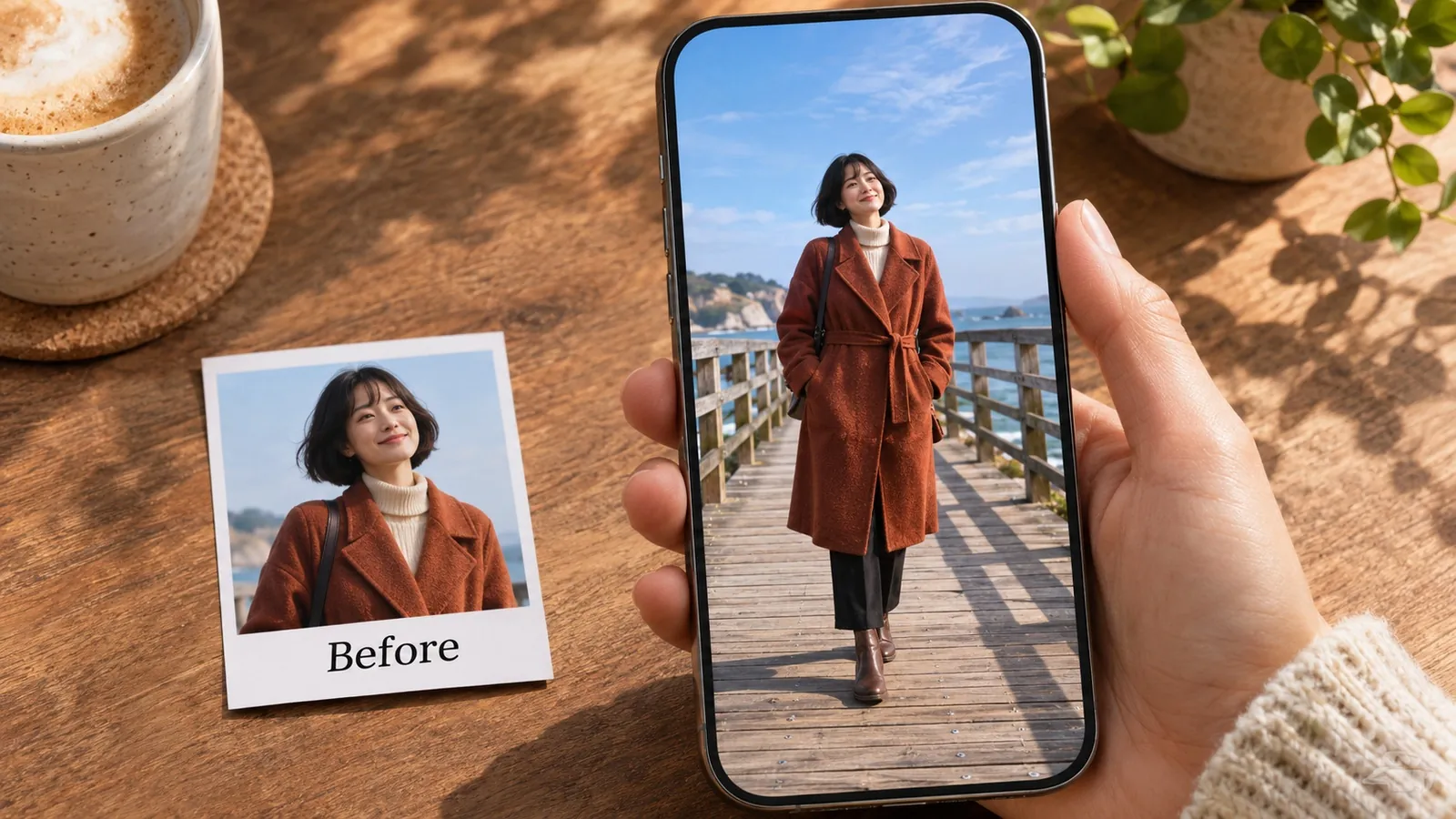
A story cover is the reverse. The 9:16 frame wants more sky or more floor. Faces should stay out of the blend. A coat, a boardwalk, and a simple sky continue. A crowded market at the border does not.
A seasonal banner is a batch, which is why the pricing examples count finished files. If every banner is a two-axis Pro run, multiply by 40 credits before you pick a package. If you can design the layout so the expansion is one direction and Fast is enough, the same campaign fits in a much smaller grant. The editor will not scold you for the expensive version. The estimate is yours.
What to check before you publish
Open the file at 100 percent. The failures are local.
Look along the old rectangle, not at the subject. Repeating texture that suddenly changes scale, a shadow that stops, a window mullion that bends, and type that turns into texture are the rejects. Look at the corners of a two-pass image twice. Corners are where two generated regions meet.
Look at anything that was cut off. If a shoulder, a bottle edge, or a chair leg entered the blend, decide whether the invention is acceptable. For a small social image viewed on a phone, a soft shoulder can pass. For a product page where the label is the point, it should not.
Compare the original and the expansion side by side, the way the cover of this guide is built. The subject should be the same size and the same face. If the person moved, the compositor did not do what the FAQ describes, and the file is a redraw. Download again or regenerate. Do not ship a redraw as if it were the source with a margin.
Keep the source file. The expansion is a derivative for a layout. The next layout will want a different ratio, and you will get a cleaner second expansion from the original than from an already extended image. Feeding an expansion back into the expander stacks seams.
Label the use honestly when the new pixels matter. A news photo with a generated crowd in the margin is a different object from a product photo with more table. The tool does not know which one you are making. You do.
A checklist before you spend the credits
Use this as the last pass.
- You know the job is outpainting. The wider frame is newly generated. It is not the crop you wish you had made.
- The file is a JPG, PNG, WebP, or HEIC under 50 MB and 6,000 pixels on the long side, and you have the right to use it.
- The subject sits fully inside the original, and the border is mostly a surface the model can continue.
- You picked a preset or typed an exact size inside the megapixel cap, and you dragged the photo to the place the layout needs.
- You know whether the frame grows on one axis or two, and you have multiplied by 10 or 20 credits accordingly.
- You started on Fast if you are testing a seam, and you will move to Pro when the composition is the one you want.
- The free grant, if that is what you are using, is 15 credits for 30 days: one single-pass Fast image, not a Pro image and not a two-axis image.
- You looked at the seam and the corners at full size, and you kept the source for the next ratio.
That is the production. Uncrop AI, Uncrop Image Online, an AI Image Expander, an AI Photo Expander, and the search for a Free AI Image Extender are all circling one operation: a browser canvas, a placed photograph, and a generated margin. The editor at uncropai.pro makes one specific version of it. Fast is 10 credits, Pro is 20, a two-direction frame is two passes, new accounts get 15 credits for one Fast pass, and the original is laid back on top so the subject can keep its place. The photograph it cannot improve is the one that needed a different moment in the camera. The photograph it can improve is the one that was only the wrong shape.